Docker安装小白教程(阿里yum)
·
Docker可以安装在物理机上,也可以安装在虚拟机或者云主机上,支持CentOS、ubuntu等多种操作系统,本实验以运行在虚拟机为例,宿主机操作系统使用CentOS 7。虚拟机的创建、操作系统的安装需要自行完成。
1.设置VM虚拟网卡
选择NAT模式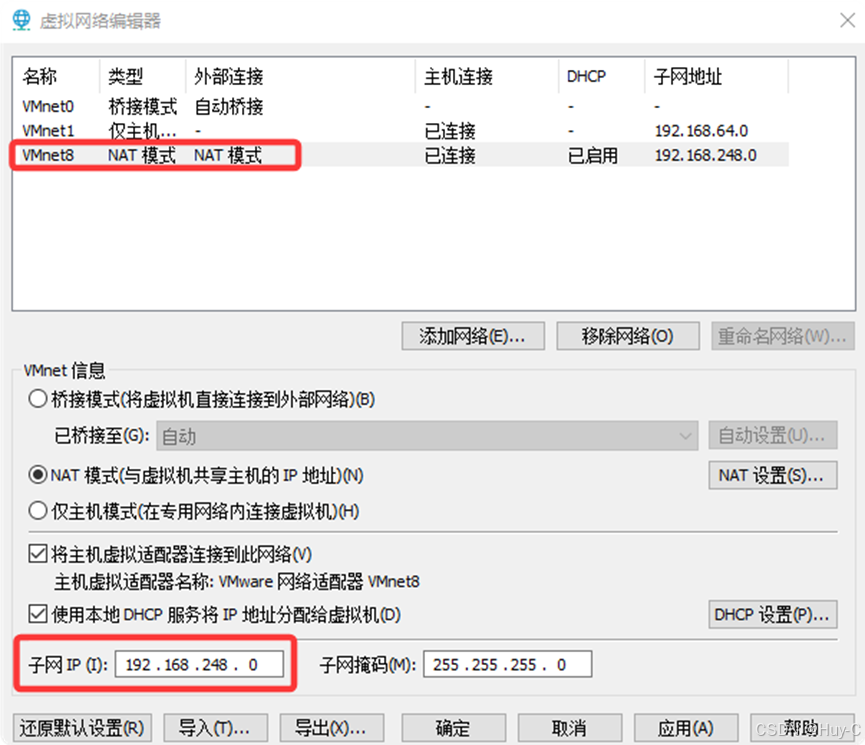
设置网关和centos网卡网关一致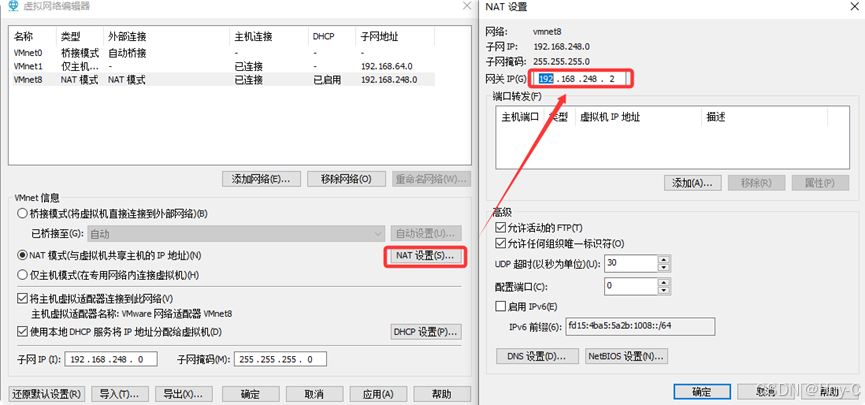
设置宿主机VM8网卡信息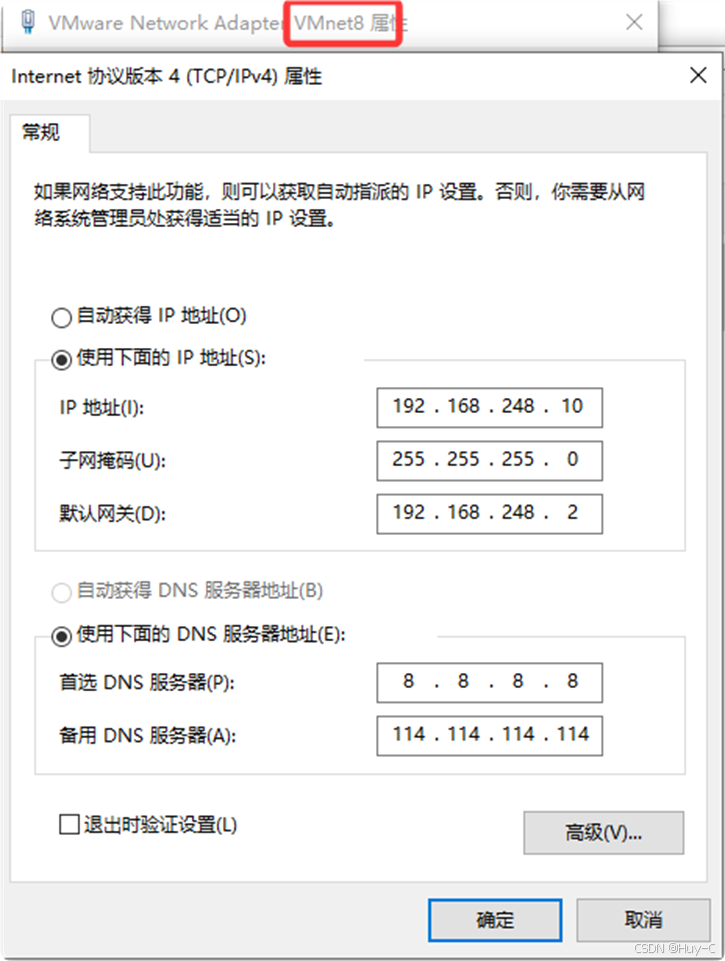
登录后查看IP地址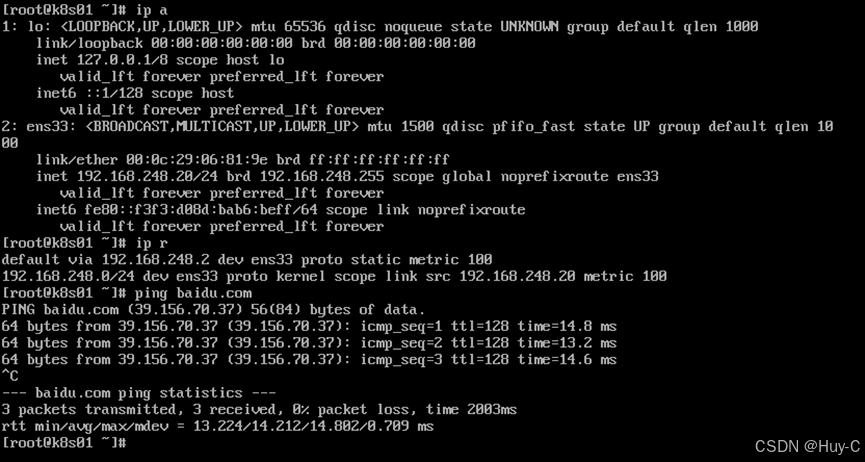
2. yum仓库更新
yum clean all
yum makecache

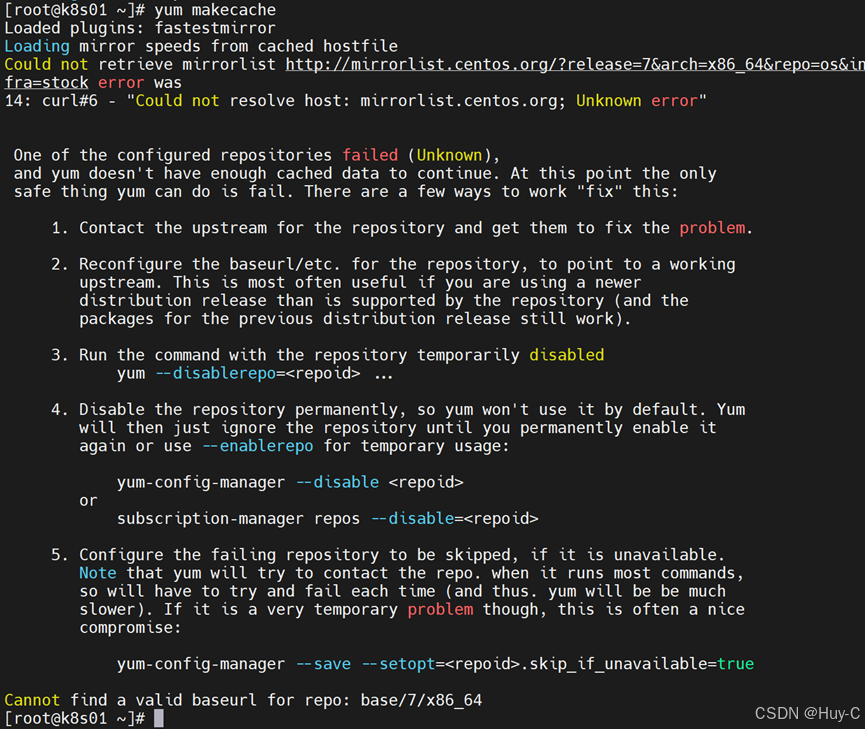
不能更新仓库,下载阿里yum仓库
curl -o /etc/yum.repos.d/CentOS-Base.repo https://mirrors.aliyun.com/repo/Centos-7.repo

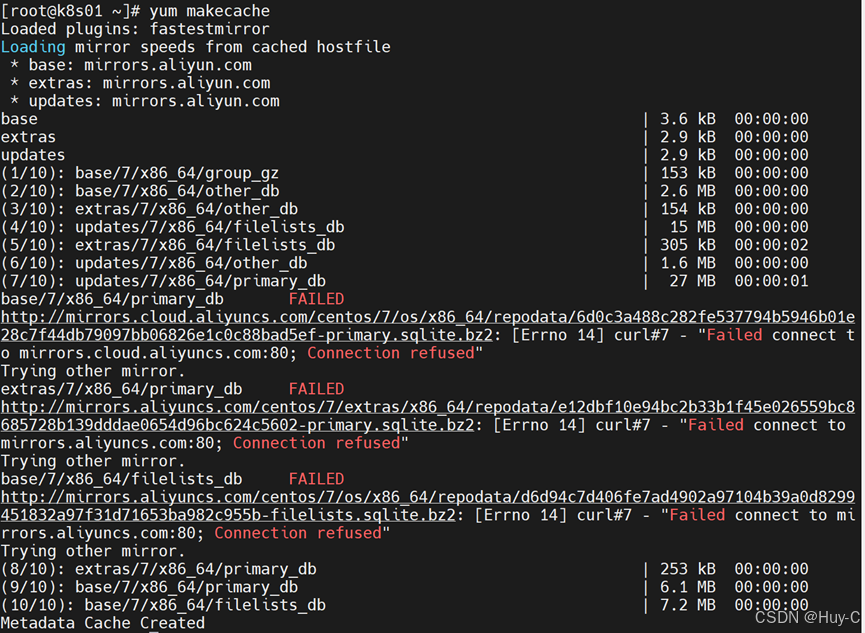
3. 安装docker
yum install -y yum-utils
安装yum-config-manager命令的软件包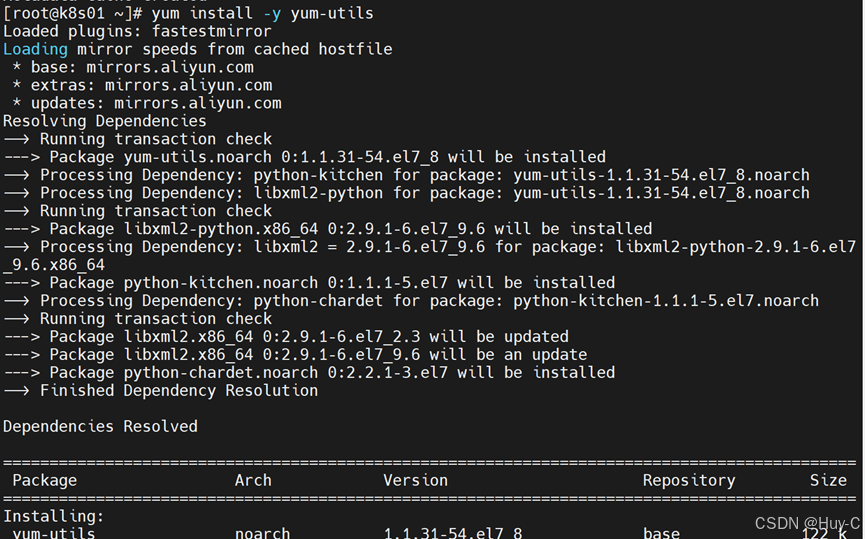
导入docker仓库
yum-config-manager --add-repo https://mirrors.aliyun.com/docker-ce/linux/centos/docker-ce.repo
安装wget
sudo yum install wget
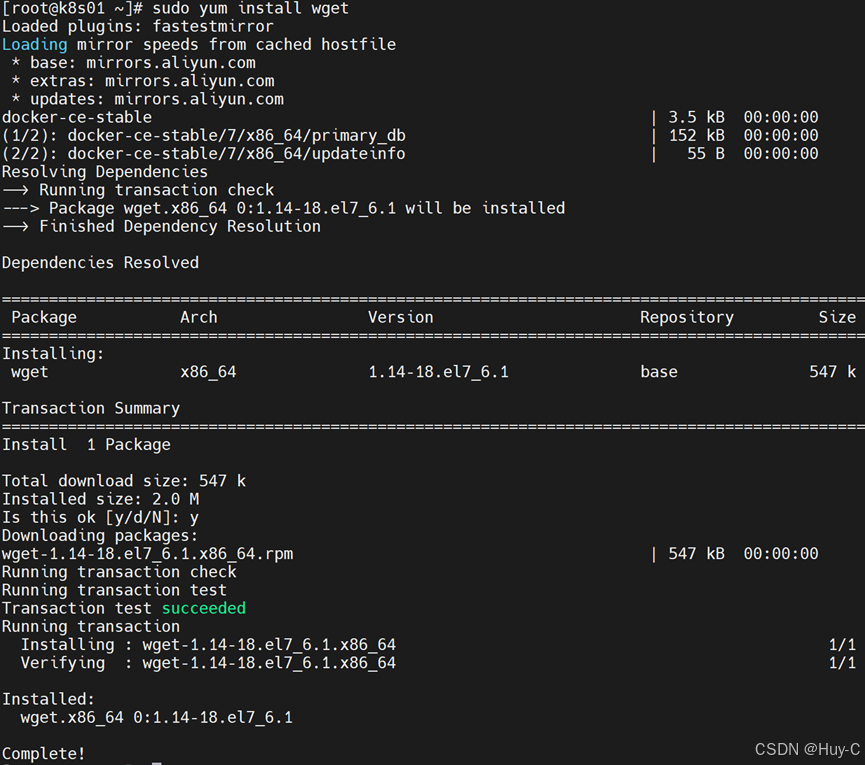
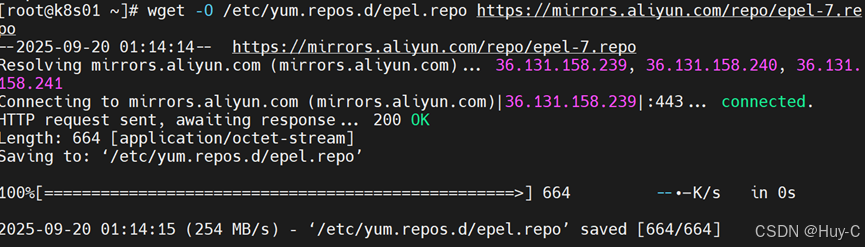
下载扩展包(可选)
wget -O /etc/yum.repos.d/epel.repo https://mirrors.aliyun.com/repo/epel-7.repo
安装社区docker
yum install docker-ce
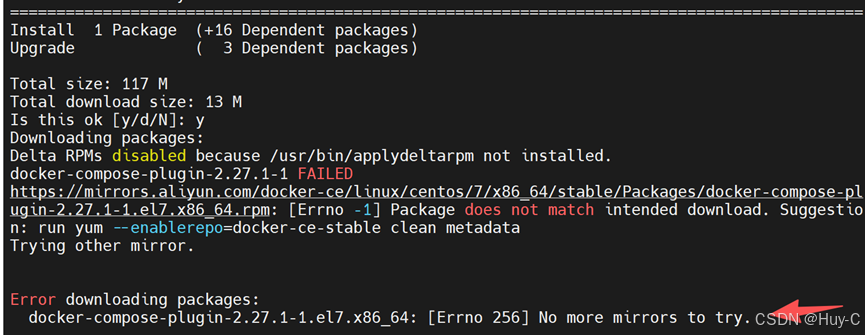
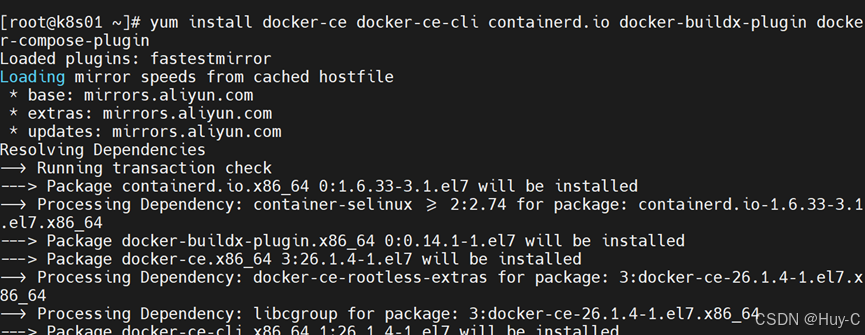
报错后用下面方式安装 或换成华为得源
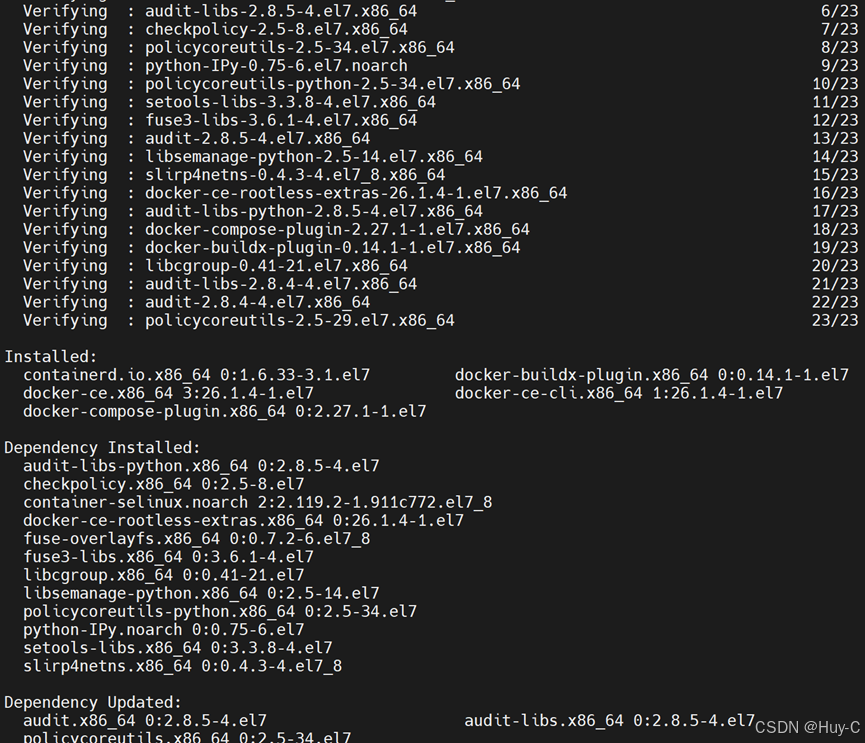
yum install docker-ce docker-ce-cli containerd.io docker-buildx-plugin docker-compose-plugin
启动docker
systemctl start docker
systemctl enable docker
systemctl status docker
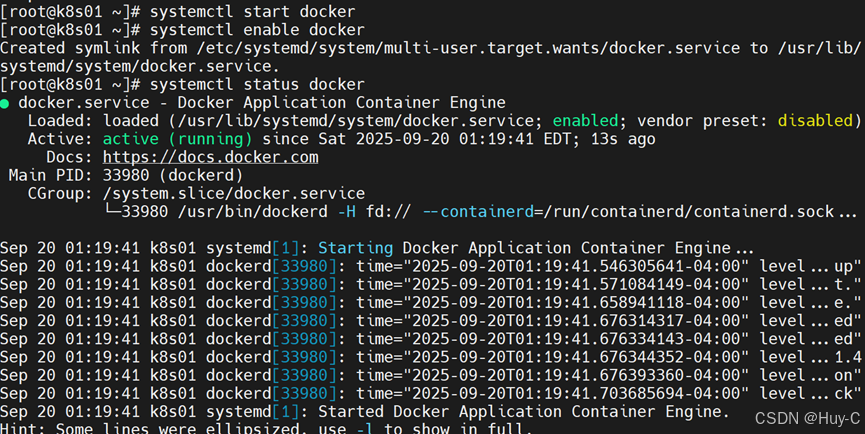
修改加速器地址
vim /etc/docker/daemon.json
{    "registry-mirrors": [
        "http://hub-mirror.c.163.com",
        "https://mirrors.tuna.tsinghua.edu.cn",
        "http://mirrors.sohu.com",
        "https://ustc-edu-cn.mirror.aliyuncs.com",
        "https://ccr.ccs.tencentyun.com",
        "https://docker.m.daocloud.io",
        "https://docker.awsl9527.cn"
    ]
}
重启docker
systemctl restart docker

下载镜像
查看镜像
docker pull httpd
docker images
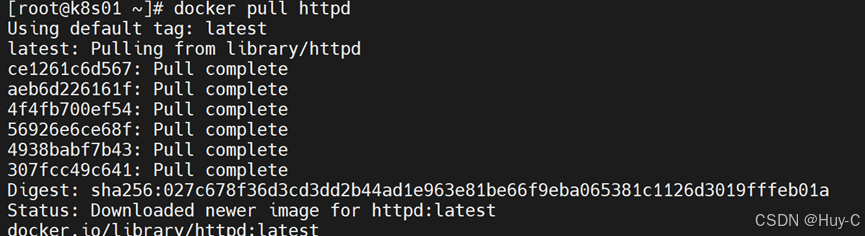

运行容器
至此安装结束

码道开发者社区,聚焦华为云码道 CodeArts 代码智能体,沉淀 Agent、Skill、鸿蒙开发实战内容,供开发者查阅资料、交流技术、分享工程实践
更多推荐
 9
9 0
0- 0


 已为社区贡献5条内容

所有评论(0)