Docker容器操作基础命令指南
Docker容器是轻量级、可移植的软件包,其中包含了运行所需的一切:代码、运行时、系统工具、系统库和设置。以下是关于Docker容器的一些基本操作命令,帮助你快速上手。
容器操作基础命令
容器生命周期
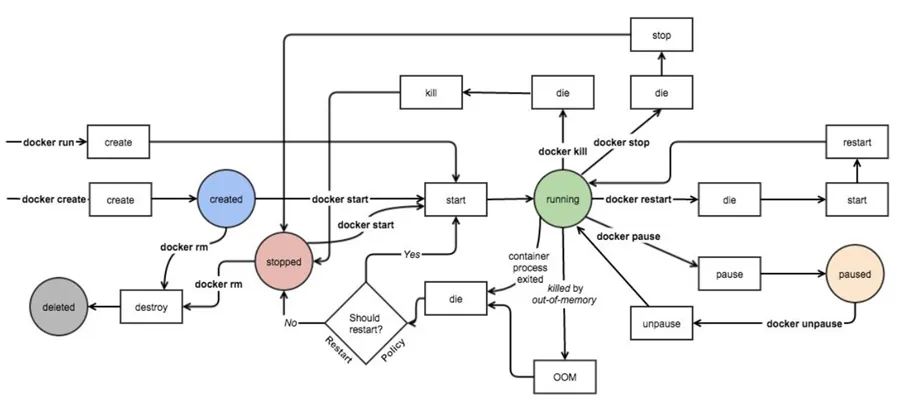
容器相关命令
[root@ubuntu2404 ~]# docker container
Usage:  docker container COMMAND

Manage containers

Commands:
  attach      Attach local standard input, output, and error streams to a running container
  commit      Create a new image from a container's changes
  cp          Copy files/folders between a container and the local filesystem
  create      Create a new container
  diff        Inspect changes to files or directories on a container's filesystem
  exec        Execute a command in a running container
  export      Export a container's filesystem as a tar archive
  inspect     Display detailed information on one or more containers
  kill        Kill one or more running containers
  logs        Fetch the logs of a container
  ls          List containers
  pause       Pause all processes within one or more containers
  port        List port mappings or a specific mapping for the container
  prune       Remove all stopped containers
  rename      Rename a container
  restart     Restart one or more containers
  rm          Remove one or more containers
  run         Create and run a new container from an image
  start       Start one or more stopped containers
  stats       Display a live stream of container(s) resource usage statistics
  stop        Stop one or more running containers
  top         Display the running processes of a container
  unpause     Unpause all processes within one or more containers
  update      Update configuration of one or more containers
  wait        Block until one or more containers stop, then print their exit codes

Run 'docker container COMMAND --help' for more information on a command.
启动容器
docker run 可以启动容器,进入到容器,并随机生成容器ID和名称
[root@rocky9 ~]# docker run hello-world

Hello from Docker!
This message shows that your installation appears to be working correctly.

To generate this message, Docker took the following steps:
 1. The Docker client contacted the Docker daemon.
 2. The Docker daemon pulled the "hello-world" image from the Docker Hub.
    (amd64)
 3. The Docker daemon created a new container from that image which runs the
    executable that produces the output you are currently reading.
 4. The Docker daemon streamed that output to the Docker client, which sent it
    to your terminal.

To try something more ambitious, you can run an Ubuntu container with:
 $ docker run -it ubuntu bash

Share images, automate workflows, and more with a free Docker ID:
 https://hub.docker.com/

For more examples and ideas, visit:
 https://docs.docker.com/get-started/
[root@rocky9 ~]# docker images
REPOSITORY    TAG              IMAGE ID       CREATED         SIZE
alpine        latest           aded1e1a5b37   5 weeks ago     7.83MB
ubuntu        latest           b1d9df8ab815   4 months ago    78.1MB
busybox       latest           31311c5853a2   5 months ago    4.27MB
hello-world   latest           d2c94e258dcb   22 months ago   13.3kB
centos        latest           5d0da3dc9764   3 years ago     231MB
tomcat        8.5.49           6408fdc94212   5 years ago     507MB
centos        centos7.7.1908   08d05d1d5859   5 years ago     204MB
[root@rocky9 ~]# docker ps -a
CONTAINER ID   IMAGE           COMMAND    CREATED          STATUS                      PORTS     NAMES
db1ae03832e8   hello-world     "/hello"   40 seconds ago   Exited (0) 38 seconds ago             keen_torvalds
65d81d316eef   hello-world     "/hello"   3 days ago       Exited (0) 3 days ago                 exciting_brattain
1c0fc42b406b   ubuntu:latest   "ls /"     3 days ago       Exited (0) 3 days ago                 competent_goldberg
启动容器的流程
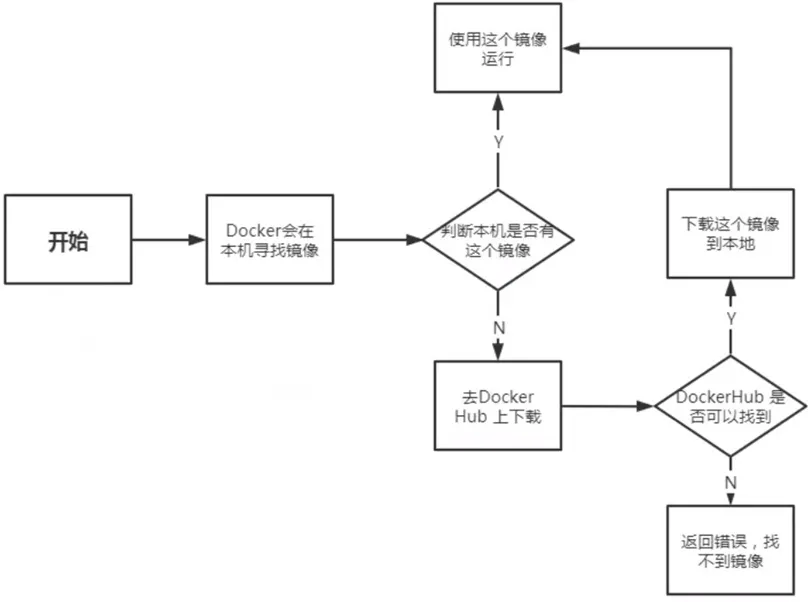
启动容器的用法
帮助:man docker run
命令格式
Usage:  docker run [OPTIONS] IMAGE [COMMAND] [ARG...]

docker run [选项]  [镜像名]  [shell命令] [参数]
#选项
-e, --env list                       Set environment variables
-i, --interactive                    Keep STDIN open even if not attached  #通常和-t一起使用
-p, --publish list                   Publish a container’s port(s) to the host
-P, --publish-all                    Publish all exposed ports to random ports
-q, --quiet                          Suppress the pull output
-t, --tty                            Allocate a pseudo-TTY
#分配pseudo-TTY,通常和-i一起使用,注意对应的容器必须运行shell才支持进入
-d, --detach                           Run container in background and print container ID
#后台运行,默认前台
–restart 可以指定四种不同的policy
如果 docker stop 停止容器后重启宿主机,always选项以外的其它选项的容器都不会随着宿主机启动而自动启动
注意:容器启动后,如果容器内没有前台运行的进程,将自动退出停止
从容器内退出,并停止容器
exit
从容器内退出,且容器不停止
同时按三个键ctrl+p+q
示例
#运行容器
#启动容器时会自动随机字符作为容器名
[root@ubuntu2404 ~]# docker run alpine:latest
[root@ubuntu2404 ~]# docker ps -a
CONTAINER ID   IMAGE           COMMAND     CREATED         STATUS                     PORTS     NAMES
0e7f4a37e51f   alpine:latest   "/bin/sh"   5 seconds ago   Exited (0) 4 seconds ago             upbeat_lehmann

#一次性运行容器中命令
#启动的容器在执行完shell命令就退出,用于测试
[root@ubuntu2404 ~]# docker run alpine:latest echo "hello alpine"
hello alpine
[root@ubuntu2404 ~]# docker ps  -a
CONTAINER ID   IMAGE           COMMAND                 CREATED              STATUS                          PORTS     NAMES
efa54e9a83fb   alpine:latest   "echo 'hello alpine'"   8 seconds ago        Exited (0) 8 seconds ago                  funny_stonebraker
0e7f4a37e51f   alpine:latest   "/bin/sh"               About a minute ago   Exited (0) About a minute ago             upbeat_lehmann

#指定容器名称
#注意每个容器的名称要唯一
[root@ubuntu2404 ~]# docker run --name test alpine:latest
[root@ubuntu2404 ~]# docker ps -a
CONTAINER ID   IMAGE           COMMAND                 CREATED         STATUS                     PORTS     NAMES
b661c4b958a4   alpine:latest   "/bin/sh"               4 seconds ago   Exited (0) 3 seconds ago             test
efa54e9a83fb   alpine:latest   "echo 'hello alpine'"   2 minutes ago   Exited (0) 2 minutes ago             funny_stonebraker
0e7f4a37e51f   alpine:latest   "/bin/sh"               3 minutes ago   Exited (0) 3 minutes ago             upbeat_lehmann


#运行交互式容器并退出
[root@ubuntu2404 ~]# docker run -it alpine:latest sh
/ # ls
bin    dev    etc    home   lib    media  mnt    opt    proc   root   run    sbin   srv    sys    tmp    usr    var
/ # exit
#用exit退出后容器也停止
[root@ubuntu2404 ~]# docker ps -l
CONTAINER ID   IMAGE           COMMAND   CREATED          STATUS                      PORTS     NAMES
1daf7cfffcbb   alpine:latest   "sh"      27 seconds ago   Exited (0) 17 seconds ago             cool_kirch

[root@ubuntu2404 ~]# docker rm -f `docker ps -qa`
1daf7cfffcbb
5227cac55eef
22f0493370db
f81464eabfc6
79724f7a2849
[root@ubuntu2404 ~]# docker run -it alpine:latest sh
/ # hostname
3ddb0676c9a2
/ #同时按三个键:ctrl+p+q

#用同时按三个键ctrl+p+q退出后容器不会停止
[root@ubuntu2404 ~]# docker ps -l
CONTAINER ID   IMAGE           COMMAND   CREATED          STATUS          PORTS     NAMES
3ddb0676c9a2   alpine:latest   "sh"      35 seconds ago   Up 34 seconds             keen_golick

#设置容器内的主机名
[root@ubuntu2404 ~]# docker run -it --name test -h caoge.com alpine
/ # hostname
caoge.com
/ # cat /etc/hosts
127.0.0.1	localhost
::1	localhost ip6-localhost ip6-loopback
fe00::	ip6-localnet
ff00::	ip6-mcastprefix
ff02::1	ip6-allnodes
ff02::2	ip6-allrouters
172.17.0.2	caoge.com caoge

#一次性运行容器,退出后立即删除,用于测试
[root@ubuntu2404 ~]# docker run --rm alpine:latest cat /etc/issue
Welcome to Alpine Linux 3.21
Kernel \r on an \m (\l)
[root@ubuntu2404 ~]# docker ps -a
CONTAINER ID   IMAGE     COMMAND   CREATED   STATUS    PORTS     NAMES
创建容器后直接进入并退出,退出两种方式
exit 容器停止
按ctrl+p+q 容器不停止
[root@ubuntu2404 ~]# docker run -it --name test alpine:latest sh
/ # hostname
32e5c88f1ff5
/ # exit  退出容器,容器也停止运行
[root@ubuntu2404 ~]# docker ps -a
CONTAINER ID   IMAGE           COMMAND   CREATED          STATUS                     PORTS     NAMES
32e5c88f1ff5   alpine:latest   "sh"      26 seconds ago   Exited (0) 7 seconds ago             test
[root@ubuntu2404 ~]# docker run -it --name test1 alpine:latest
/ # ls
bin    dev    etc    home   lib    media  mnt    opt    proc   root   run    sbin   srv    sys    tmp    usr    var
/ #  同时按ctrl+p+q 三个键退出后,容器不停止
[root@ubuntu2404 ~]# docker ps -a
CONTAINER ID   IMAGE           COMMAND     CREATED              STATUS                          PORTS     NAMES
bea399b8f511   alpine:latest   "/bin/sh"   20 seconds ago       Up 19 seconds                             test1
32e5c88f1ff5   alpine:latest   "sh"        About a minute ago   Exited (0) About a minute ago             test
什么是守护式容器
能够长期运行
无需交互式会话
适合运行应用程序和服务
启动前台守护容器
[root@ubuntu2404 ~]# docker run nginx:1.26
/docker-entrypoint.sh: /docker-entrypoint.d/ is not empty, will attempt to perform configuration
/docker-entrypoint.sh: Looking for shell scripts in /docker-entrypoint.d/
/docker-entrypoint.sh: Launching /docker-entrypoint.d/10-listen-on-ipv6-by-default.sh
10-listen-on-ipv6-by-default.sh: info: Getting the checksum of /etc/nginx/conf.d/default.conf
10-listen-on-ipv6-by-default.sh: info: Enabled listen on IPv6 in /etc/nginx/conf.d/default.conf
/docker-entrypoint.sh: Sourcing /docker-entrypoint.d/15-local-resolvers.envsh
/docker-entrypoint.sh: Launching /docker-entrypoint.d/20-envsubst-on-templates.sh
/docker-entrypoint.sh: Launching /docker-entrypoint.d/30-tune-worker-processes.sh
/docker-entrypoint.sh: Configuration complete; ready for start up
2025/03/23 08:00:00 [notice] 1#1: using the "epoll" event method
2025/03/23 08:00:00 [notice] 1#1: nginx/1.26.3
2025/03/23 08:00:00 [notice] 1#1: built by gcc 12.2.0 (Debian 12.2.0-14)
2025/03/23 08:00:00 [notice] 1#1: OS: Linux 6.8.0-55-generic
2025/03/23 08:00:00 [notice] 1#1: getrlimit(RLIMIT_NOFILE): 1048576:1048576
2025/03/23 08:00:00 [notice] 1#1: start worker processes
2025/03/23 08:00:00 [notice] 1#1: start worker process 29
2025/03/23 08:00:00 [notice] 1#1: start worker process 30
2025/03/23 08:00:00 [notice] 1#1: start worker process 31
2025/03/23 08:00:00 [notice] 1#1: start worker process 32
172.17.0.1 - - [23/Mar/2025:08:01:34 +0000] "GET / HTTP/1.1" 200 615 "-" "curl/8.5.0" "-"

[root@ubuntu2404 ~]# curl 172.17.0.2
<!DOCTYPE html>
<html>
<head>
<title>Welcome to nginx!</title>
<style>
html { color-scheme: light dark; }
body { width: 35em; margin: 0 auto;
font-family: Tahoma, Verdana, Arial, sans-serif; }
</style>
</head>
<body>
<h1>Welcome to nginx!</h1>
<p>If you see this page, the nginx web server is successfully installed and
working. Further configuration is required.</p>

<p>For online documentation and support please refer to
<a href="http://nginx.org/">nginx.org</a>.<br/>
Commercial support is available at
<a href="http://nginx.com/">nginx.com</a>.</p>

<p><em>Thank you for using nginx.</em></p>
</body>
</html>
启动后台守护容器
[root@ubuntu2404 ~]# docker run -d nginx:1.26
d69abb10e94085cfeba0862cfd1f625a1c3c257f7204f58de3d9c4a28261acd8
[root@ubuntu2404 ~]# docker ps -l
CONTAINER ID   IMAGE        COMMAND                  CREATED         STATUS         PORTS     NAMES
d69abb10e940   nginx:1.26   "/docker-entrypoint.…"   6 seconds ago   Up 6 seconds   80/tcp    infallible_euclid

#有些容器后台启动不会持续运行
[root@ubuntu2404 ~]# docker run -d alpine:latest
25ccd0994929aeb0889fdedcedf04b7c96c1d68fd944b09387ee794b426ebd6f
[root@ubuntu2404 ~]# docker ps -l
CONTAINER ID   IMAGE           COMMAND     CREATED         STATUS                     PORTS     NAMES
25ccd0994929   alpine:latest   "/bin/sh"   4 seconds ago   Exited (0) 3 seconds ago             nervous_shtern

[root@ubuntu2404 ~]# docker run -td --name alpine1 alpine:latest
ff5bcaadc645b01bb104b96e6c3ac65b7ec8adc734d523acf7d364106664b1c7
[root@ubuntu2404 ~]# docker ps -a
CONTAINER ID   IMAGE           COMMAND                  CREATED              STATUS                      PORTS     NAMES
ff5bcaadc645   alpine:latest   "/bin/sh"                4 seconds ago        Up 3 seconds                          alpine1
25ccd0994929   alpine:latest   "/bin/sh"                About a minute ago   Exited (0) 59 seconds ago             nervous_shtern
d69abb10e940   nginx:1.26      "/docker-entrypoint.…"   2 minutes ago        Up 2 minutes                80/tcp    infallible_euclid
e9fec44968b6   53a18edff809    "/docker-entrypoint.…"   2 minutes ago        Created                               gifted_shockley
3a58b56c5bbf   nginx:1.26      "/docker-entrypoint.…"   7 minutes ago        Exited (0) 4 minutes ago              great_jones
7fb4d93d99af   53a18edff809    "/docker-entrypoint.…"   8 minutes ago        Exited (0) 7 minutes ago              wizardly_dhawan
开机自动运行容器
[root@ubuntu2404 ~]# docker run -d  --name test1 --restart=always -p 80:80 nginx:1.26
68848375837af80e1876aa121f6fa51aa3ac065e17cba92b3a15b6d24a2ce562
[root@ubuntu2404 ~]# reboot
[root@ubuntu2404 ~]# docker ps -a
CONTAINER ID   IMAGE        COMMAND                  CREATED         STATUS         PORTS                                 NAMES
68848375837a   nginx:1.26   "/docker-entrypoint.…"   4 minutes ago   Up 3 minutes   0.0.0.0:80->80/tcp, [::]:80->80/tcp   test1
–privileged 选项
大约在0.6版,–privileged 选项被引入docker。使用该参数,container内的root拥有真正的root权限。否则,container内的root只是外部的一个普通用户权限。privileged启动的容器,可以看到很多host上 的设备,并且可以执行mount。甚至允许你在docker容器中启动docker容器。
使用–privileged让容器获取root权限
[root@ubuntu2404 ~]#podman run -it   centos
cat /etc/redhat-release
lsblk

#利用--privileged 选项运行容器
[root@ubuntu2404 ~]#podman run -it --privileged   centos
#可以看到宿主机的设备
[root@a6391a8f82e3 /]# lsblk
df
mount /dev/sda3 /mnt
df
touch /mnt/containter.txt
echo container data > /mnt/containter.txt
cat  /mnt/containter.txt

#在宿主机查看是否生成文件
[root@ubuntu2404 ~]#lsblk
[root@ubuntu2404 ~]#ll /data/containter.txt
[root@ubuntu2404 ~]#cat /data/containter.txt
[root@ubuntu2404 ~]#echo host data >> /data/containter.txt
[root@ubuntu2404 ~]#cat /data/containter.txt

#在容器内可看文件是否发生变化
[root@a6391a8f82e3 /]# cat  /mnt/containter.txt

#运行docker官方文档容器
[root@ubuntu2404 ~]#podman run -d -p 4000:4000 docs/docker.github.io:latest
[root@ubuntu2404 ~]#podman images docs/docker.github.io
#用浏览器访问http://localhost:4000/可以看到docker文档资料
查看容器信息
显示当前存在容器
https://docs.docker.com/engine/reference/commandline/ps/
格式
Usage:  docker ps [OPTIONS]

List containers

Aliases:
  docker container ls, docker container list, docker container ps, docker ps

Options:
  -a, --all             Show all containers (default shows just running)
  -f, --filter filter   Filter output based on conditions provided
      --format string   Format output using a custom template:   #按格式输出信息
                        'table':            Print output in table format with column headers (default)
                        'table TEMPLATE':   Print output in table format using the given Go template
                        'json':             Print in JSON format
                        'TEMPLATE':         Print output using the given Go template.
                        Refer to https://docs.docker.com/go/formatting/ for more information about formatting output with templates
  -n, --last int        Show n last created containers (includes all states) (default -1)
  -l, --latest          Show the latest created container (includes all states)
      --no-trunc        Don't truncate output
  -q, --quiet           Only display container IDs
  -s, --size            Display total file sizes
docker ps --format 命令中,你可以使用不同的占位符来指定要在输出中显示的容器信息。
以下是一些常用的占位符
{{.ID}}:容器的ID。
{{.Image}}:容器使用的映像名称。
{{.Command}}:容器的启动命令。
{{.CreatedAt}}:容器的创建时间。
{{.RunningFor}}:容器运行的时间。
{{.Ports}}:容器的端口映射信息。
{{.Status}}:容器的状态。
{{.Size}}:容器的大小。
{{.Names}}:容器的名称。
{{.Label}}:容器的标签。

#示例
docker ps --format "{{.ID}}\t{{.Image}}\t{{.Status}}"
示例
#显示运行的容器
[root@ubuntu2404 ~]# docker ps
CONTAINER ID   IMAGE        COMMAND                  CREATED          STATUS          PORTS                                 NAMES
68848375837a   nginx:1.26   "/docker-entrypoint.…"   22 minutes ago   Up 22 minutes   0.0.0.0:80->80/tcp, [::]:80->80/tcp   test1

#显示全部容器,包括退出状态的容器
[root@ubuntu2404 ~]# docker ps -a
CONTAINER ID   IMAGE           COMMAND                  CREATED          STATUS                      PORTS     NAMES
dc09425af2be   alpine:latest   "/bin/sh"                3 seconds ago    Exited (0) 3 seconds ago              test2
68848375837a   nginx:1.26      "/docker-entrypoint.…"   23 minutes ago   Exited (0) 24 seconds ago             test1

#只显示容器ID
[root@ubuntu2404 ~]# docker ps -qa
dc09425af2be
68848375837a

#显示容器大小
[root@ubuntu2404 ~]# docker ps -as
CONTAINER ID   IMAGE           COMMAND                  CREATED              STATUS                          PORTS     NAMES     SIZE
dc09425af2be   alpine:latest   "/bin/sh"                About a minute ago   Exited (0) About a minute ago             test2     0B (virtual 7.83MB)
68848375837a   nginx:1.26      "/docker-entrypoint.…"   24 minutes ago       Exited (0) About a minute ago             test1     1.09kB (virtual 192MB)

#显示最新创建的容器(停止的容器也能显示)
[root@ubuntu2404 ~]# docker ps -l
CONTAINER ID   IMAGE           COMMAND     CREATED         STATUS                     PORTS     NAMES
dc09425af2be   alpine:latest   "/bin/sh"   2 minutes ago   Exited (0) 2 minutes ago             test2

#显示指定状态的容器
[root@ubuntu2404 ~]# docker ps -a
CONTAINER ID   IMAGE           COMMAND                  CREATED          STATUS                     PORTS     NAMES
dc09425af2be   alpine:latest   "/bin/sh"                3 minutes ago    Exited (0) 3 minutes ago             test2
68848375837a   nginx:1.26      "/docker-entrypoint.…"   26 minutes ago   Exited (0) 3 minutes ago             test1
[root@ubuntu2404 ~]# docker ps
CONTAINER ID   IMAGE     COMMAND   CREATED   STATUS    PORTS     NAMES
[root@ubuntu2404 ~]# docker ps -f 'status=exited'
CONTAINER ID   IMAGE           COMMAND                  CREATED          STATUS                     PORTS     NAMES
dc09425af2be   alpine:latest   "/bin/sh"                3 minutes ago    Exited (0) 3 minutes ago             test2
68848375837a   nginx:1.26      "/docker-entrypoint.…"   27 minutes ago   Exited (0) 3 minutes ago             test1
查看容器内的进程
格式
docker top CONTAINER [ps OPTIONS]
示例
[root@ubuntu2404 ~]# docker run -d --name test1 httpd:latest
9f33fc707d6f4726a037b965608b4a2486e8baea7da41059707176c63777d86c
[root@ubuntu2404 ~]# docker top test1
UID                 PID                 PPID                C                   STIME               TTY                 TIME                CMD
root                3030                3010                0                   08:46               ?                   00:00:00            httpd -DFOREGROUND
www-data            3070                3030                0                   08:46               ?                   00:00:00            httpd -DFOREGROUND
www-data            3072                3030                0                   08:46               ?                   00:00:00            httpd -DFOREGROUND
www-data            3110                3030                0                   08:46               ?                   00:00:00            httpd -DFOREGROUND
[root@ubuntu2404 ~]# docker run -d  alpine /bin/sh -c 'i=1;while true;do echo hello$i;let i++;sleep 1;done'
查看容器资源使用情况
格式
Usage:  docker stats [OPTIONS] [CONTAINER...]

Display a live stream of container(s) resource usage statistics

Aliases:
  docker container stats, docker stats

Options:
  -a, --all             Show all containers (default shows just running)
      --format string   Format output using a custom template:
                        'table':            Print output in table format with column headers (default)
                        'table TEMPLATE':   Print output in table format using the given Go template
                        'json':             Print in JSON format
                        'TEMPLATE':         Print output using the given Go template.
                        Refer to https://docs.docker.com/go/formatting/ for more information about formatting output with templates
      --no-stream       Disable streaming stats and only pull the first result
      --no-trunc        Do not truncate output
示例
[root@ubuntu2404 ~]# docker ps -l
CONTAINER ID   IMAGE          COMMAND              CREATED         STATUS         PORTS     NAMES
9f33fc707d6f   httpd:latest   "httpd-foreground"   5 minutes ago   Up 5 minutes   80/tcp    test1
[root@ubuntu2404 ~]# docker stats test1
CONTAINER ID   NAME      CPU %     MEM USAGE / LIMIT   MEM %     NET I/O   BLOCK I/O   PIDS
9f33fc707d6f   test1     --        -- / --             --        --        --          --

#查看所有容器
[root@ubuntu2404 ~]# docker stats
CONTAINER ID   NAME      CPU %     MEM USAGE / LIMIT   MEM %     NET I/O   BLOCK I/O   PIDS
03e32e06584a   test2     --        -- / --             --        --        --          --
9f33fc707d6f   test1     --        -- / --             --        --        --          --
#限制内存使用大小
[root@ubuntu2404 ~]# docker run -d --name elasticsearch -p 9200:9200 -p 9300:9300 -e "discovery.type=single-node" -e ES_JAVA_OPTS="-Xms64m -Xmx128m" elasticsearch:7.6.2
查看容器的详细信息
https://docs.docker.com/engine/reference/commandline/inspect/
docker inspect 可以查看docker各种对象的详细信息,包括:镜像,容器,网络等。
Usage:  docker inspect [OPTIONS] NAME|ID [NAME|ID...]

Return low-level information on Docker objects

Options:
  -f, --format string   Format output using a custom template:
                        'json':             Print in JSON format
                        'TEMPLATE':         Print output using the given Go template.
                        Refer to https://docs.docker.com/go/formatting/ for more information about formatting output with templates
  -s, --size            Display total file sizes if the type is container
      --type string     Return JSON for specified type
示例
[root@ubuntu2404 ~]# docker inspect test2
[
    {
        "Id": "03e32e06584a14060e9a10aa1e0c59ede4db63ed16d2e459596627d64ba188ea",
        "Created": "2025-03-23T08:52:56.940386826Z",
        "Path": "/docker-entrypoint.sh",
        "Args": [
            "nginx",
            "-g",
            "daemon off;"
        ],
        "State": {
            "Status": "running",
            "Running": true,
            "Paused": false,
            "Restarting": false,
            "OOMKilled": false,
            "Dead": false,
            "Pid": 3383,
            "ExitCode": 0,
            "Error": "",
            "StartedAt": "2025-03-23T08:52:56.986996881Z",
            "FinishedAt": "0001-01-01T00:00:00Z"
        },
        "Image": "sha256:7f4dac4da92ad1c1367edc3914a3ca2a35eade267a05d79144de5cb0f92f73e9",
        "ResolvConfPath": "/var/lib/docker/containers/03e32e06584a14060e9a10aa1e0c59ede4db63ed16d2e459596627d64ba188ea/resolv.conf",
        "HostnamePath": "/var/lib/docker/containers/03e32e06584a14060e9a10aa1e0c59ede4db63ed16d2e459596627d64ba188ea/hostname",
        "HostsPath": "/var/lib/docker/containers/03e32e06584a14060e9a10aa1e0c59ede4db63ed16d2e459596627d64ba188ea/hosts",
        "LogPath": "/var/lib/docker/containers/03e32e06584a14060e9a10aa1e0c59ede4db63ed16d2e459596627d64ba188ea/03e32e06584a14060e9a10aa1e0c59ede4db63ed16d2e459596627d64ba188ea-json.log",
        "Name": "/test2",
        "RestartCount": 0,
        "Driver": "overlay2",
        "Platform": "linux",
        "MountLabel": "",
        "ProcessLabel": "",
        "AppArmorProfile": "docker-default",
        "ExecIDs": null,
        "HostConfig": {
            "Binds": null,
            "ContainerIDFile": "",
            "LogConfig": {
                "Type": "json-file",
                "Config": {}
            },
            "NetworkMode": "bridge",
            "PortBindings": {},
            "RestartPolicy": {
                "Name": "no",
                "MaximumRetryCount": 0
            },
            "AutoRemove": false,
            "VolumeDriver": "",
            "VolumesFrom": null,
            "ConsoleSize": [
                31,
                145
            ],
            "CapAdd": null,
            "CapDrop": null,
            "CgroupnsMode": "private",
            "Dns": [],
            "DnsOptions": [],
            "DnsSearch": [],
            "ExtraHosts": null,
            "GroupAdd": null,
            "IpcMode": "private",
            "Cgroup": "",
            "Links": null,
            "OomScoreAdj": 0,
            "PidMode": "",
            "Privileged": false,
            "PublishAllPorts": false,
            "ReadonlyRootfs": false,
            "SecurityOpt": null,
            "UTSMode": "",
            "UsernsMode": "",
            "ShmSize": 67108864,
            "Runtime": "runc",
            "Isolation": "",
            "CpuShares": 0,
            "Memory": 0,
            "NanoCpus": 0,
            "CgroupParent": "",
            "BlkioWeight": 0,
            "BlkioWeightDevice": [],
            "BlkioDeviceReadBps": [],
            "BlkioDeviceWriteBps": [],
            "BlkioDeviceReadIOps": [],
            "BlkioDeviceWriteIOps": [],
            "CpuPeriod": 0,
            "CpuQuota": 0,
            "CpuRealtimePeriod": 0,
            "CpuRealtimeRuntime": 0,
            "CpusetCpus": "",
            "CpusetMems": "",
            "Devices": [],
            "DeviceCgroupRules": null,
            "DeviceRequests": null,
            "MemoryReservation": 0,
            "MemorySwap": 0,
            "MemorySwappiness": null,
            "OomKillDisable": null,
            "PidsLimit": null,
            "Ulimits": [],
            "CpuCount": 0,
            "CpuPercent": 0,
            "IOMaximumIOps": 0,
            "IOMaximumBandwidth": 0,
            "MaskedPaths": [
                "/proc/asound",
                "/proc/acpi",
                "/proc/kcore",
                "/proc/keys",
                "/proc/latency_stats",
                "/proc/timer_list",
                "/proc/timer_stats",
                "/proc/sched_debug",
                "/proc/scsi",
                "/sys/firmware",
                "/sys/devices/virtual/powercap"
            ],
            "ReadonlyPaths": [
                "/proc/bus",
                "/proc/fs",
                "/proc/irq",
                "/proc/sys",
                "/proc/sysrq-trigger"
            ]
        },
        "GraphDriver": {
            "Data": {
                "ID": "03e32e06584a14060e9a10aa1e0c59ede4db63ed16d2e459596627d64ba188ea",
                "LowerDir": "/var/lib/docker/overlay2/78ce3f7f1281fb209d21a3b03714f2f30584e342cfa04ab14d708ef39d8a6cb4-init/diff:/var/lib/docker/overlay2/4d335e695ae4691a29f6644a9a11b45ee85ce201e3fb060cf67baeb8291c6c2f/diff:/var/lib/docker/overlay2/530fefbacfbbb08a82f44d3ed883632e060050a20626586afae8d57c56d5c4f5/diff:/var/lib/docker/overlay2/155c040edecf7481db170a78034b93944b0c9d93987f6d160ead12295d18499a/diff:/var/lib/docker/overlay2/3d5f7475cae601e581b4f006c5dd01775c85c5a59984b646d9e6b6aa68bd7bc2/diff:/var/lib/docker/overlay2/ac4735f2bc1800807202349afd77b9cab9c0a6bf7bd7cad76532ad126b0b63eb/diff:/var/lib/docker/overlay2/13d5e59b7d8894c16c90aec9d4cb8ae55a2e69713b3cde43dd398eb8d00d284d/diff:/var/lib/docker/overlay2/04d5000912d5fb75825407675fd23e1a738b8c9435c4ab2f1e3f4fe40156336b/diff",
                "MergedDir": "/var/lib/docker/overlay2/78ce3f7f1281fb209d21a3b03714f2f30584e342cfa04ab14d708ef39d8a6cb4/merged",
                "UpperDir": "/var/lib/docker/overlay2/78ce3f7f1281fb209d21a3b03714f2f30584e342cfa04ab14d708ef39d8a6cb4/diff",
                "WorkDir": "/var/lib/docker/overlay2/78ce3f7f1281fb209d21a3b03714f2f30584e342cfa04ab14d708ef39d8a6cb4/work"
            },
            "Name": "overlay2"
        },
        "Mounts": [],
        "Config": {
            "Hostname": "03e32e06584a",
            "Domainname": "",
            "User": "",
            "AttachStdin": false,
            "AttachStdout": false,
            "AttachStderr": false,
            "ExposedPorts": {
                "80/tcp": {}
            },
            "Tty": false,
            "OpenStdin": false,
            "StdinOnce": false,
            "Env": [
                "PATH=/usr/local/sbin:/usr/local/bin:/usr/sbin:/usr/bin:/sbin:/bin",
                "NGINX_VERSION=1.26.3",
                "NJS_VERSION=0.8.9",
                "NJS_RELEASE=1~bookworm",
                "PKG_RELEASE=1~bookworm",
                "DYNPKG_RELEASE=2~bookworm"
            ],
            "Cmd": [
                "nginx",
                "-g",
                "daemon off;"
            ],
            "Image": "nginx:1.26",
            "Volumes": null,
            "WorkingDir": "",
            "Entrypoint": [
                "/docker-entrypoint.sh"
            ],
            "OnBuild": null,
            "Labels": {
                "maintainer": "NGINX Docker Maintainers <docker-maint@nginx.com>"
            },
            "StopSignal": "SIGQUIT"
        },
        "NetworkSettings": {
            "Bridge": "",
            "SandboxID": "0cec6291879a522dcced5a5c4ecb6349d565713beec93826e5d8d02b9d3f5e37",
            "SandboxKey": "/var/run/docker/netns/0cec6291879a",
            "Ports": {
                "80/tcp": null
            },
            "HairpinMode": false,
            "LinkLocalIPv6Address": "",
            "LinkLocalIPv6PrefixLen": 0,
            "SecondaryIPAddresses": null,
            "SecondaryIPv6Addresses": null,
            "EndpointID": "b52a2a7bf08fa9d4dcc45e8a9984cfbe84f446929e9e4eb9692cf78ad4b0ca53",
            "Gateway": "172.17.0.1",
            "GlobalIPv6Address": "",
            "GlobalIPv6PrefixLen": 0,
            "IPAddress": "172.17.0.3",
            "IPPrefixLen": 16,
            "IPv6Gateway": "",
            "MacAddress": "4a:19:11:0a:16:10",
            "Networks": {
                "bridge": {
                    "IPAMConfig": null,
                    "Links": null,
                    "Aliases": null,
                    "MacAddress": "4a:19:11:0a:16:10",
                    "DriverOpts": null,
                    "GwPriority": 0,
                    "NetworkID": "a05e4daed1140d8962449b30ff195ec39593f99e225ad19f367c480cb847ac61",
                    "EndpointID": "b52a2a7bf08fa9d4dcc45e8a9984cfbe84f446929e9e4eb9692cf78ad4b0ca53",
                    "Gateway": "172.17.0.1",
                    "IPAddress": "172.17.0.3",
                    "IPPrefixLen": 16,
                    "IPv6Gateway": "",
                    "GlobalIPv6Address": "",
                    "GlobalIPv6PrefixLen": 0,
                    "DNSNames": null
                }
            }
        }
    }
]
#选择性查看
[root@ubuntu2404 ~]# docker inspect -f "{{.Created}}" test2
2025-03-23T08:52:56.940386826Z
[root@ubuntu2404 ~]# docker inspect -f "{{.State.Status}}" test2
running
#查看容器IP
[root@ubuntu2404 ~]# docker inspect -f "{{.NetworkSettings.Networks.bridge.IPAddress}}" test2
172.17.0.3
删除容器
https://docs.docker.com/engine/reference/commandline/rm/
docker rm 可以删除容器,即使容器正在运行当中,也可以被强制删除掉。
格式
Usage:  docker rm [OPTIONS] CONTAINER [CONTAINER...]

Remove one or more containers

Aliases:
  docker container rm, docker container remove, docker rm

Options:
  -f, --force     Force the removal of a running container (uses SIGKILL)
  -l, --link      Remove the specified link
  -v, --volumes   Remove anonymous volumes associated with the container
示例
[root@ubuntu2404 ~]# docker ps -a
CONTAINER ID   IMAGE          COMMAND                  CREATED       STATUS                     PORTS     NAMES
03e32e06584a   nginx:1.26     "/docker-entrypoint.…"   5 hours ago   Exited (0) 5 seconds ago             test2
9f33fc707d6f   httpd:latest   "httpd-foreground"       6 hours ago   Exited (0) 5 hours ago               test1
[root@ubuntu2404 ~]# docker rm test2
test2
[root@ubuntu2404 ~]# docker rm 9f33fc707d6f
9f33fc707d6f
CONTAINER ID   IMAGE        COMMAND                  CREATED          STATUS                        PORTS     NAMES
852f3e1b56ca   nginx:1.26   "/docker-entrypoint.…"   5 seconds ago    Up 4 seconds                  80/tcp    quizzical_williamson
6645b96f67a5   nginx:1.26   "/docker-entrypoint.…"   15 seconds ago   Exited (127) 14 seconds ago             awesome_goldberg
[root@ubuntu2404 ~]# docker rm -f 852f3e1b56ca
852f3e1b56ca

#删除所有容器
[root@ubuntu2404 ~]# docker ps -a
CONTAINER ID   IMAGE          COMMAND              CREATED          STATUS                      PORTS     NAMES
c266cf8ad987   httpd:latest   "httpd-foreground"   3 seconds ago    Up 3 seconds                80/tcp    cranky_lamport
54dcd83d7974   centos:7       "/bin/bash"          14 seconds ago   Exited (0) 13 seconds ago             trusting_shamir
#方式1
[root@ubuntu2404 ~]# docker rm -f `docker ps -aq`
c266cf8ad987
54dcd83d7974
[root@ubuntu2404 ~]# docker ps -a
CONTAINER ID   IMAGE     COMMAND   CREATED   STATUS    PORTS     NAMES
#方式2
[root@ubuntu2404 ~]# docker ps -a -q | xargs docker rm -f

#删除指定状态的容器
[root@ubuntu2404 ~]# docker ps -a
CONTAINER ID   IMAGE          COMMAND              CREATED          STATUS                     PORTS     NAMES
5485e3d80002   httpd:latest   "httpd-foreground"   6 seconds ago    Up 6 seconds               80/tcp    nifty_sinoussi
0c7ff325daf5   centos:7       "/bin/bash"          10 seconds ago   Exited (0) 9 seconds ago             objective_meninsky
[root@ubuntu2404 ~]# docker rm -f `docker ps -qf status=running`
5485e3d80002
[root@ubuntu2404 ~]# docker ps -a
CONTAINER ID   IMAGE      COMMAND       CREATED              STATUS                          PORTS     NAMES
0c7ff325daf5   centos:7   "/bin/bash"   About a minute ago   Exited (0) About a minute ago             objective_meninsky

#删除所有停止的容器
[root@ubuntu2404 ~]# docker ps -a
CONTAINER ID   IMAGE      COMMAND       CREATED              STATUS                          PORTS     NAMES
0c7ff325daf5   centos:7   "/bin/bash"   About a minute ago   Exited (0) About a minute ago             objective_meninsky
[root@ubuntu2404 ~]# docker rm `docker ps -qf status=exited`
0c7ff325daf5
[root@ubuntu2404 ~]# docker ps -a
CONTAINER ID   IMAGE     COMMAND   CREATED   STATUS    PORTS     NAMES
容器的停止和启动
格式
docker start|stop|restart|pause|unpause 容器ID
批量正常启动或关闭所有容器
docker start $(docker ps -aq)
docker stop $(docker ps -aq)
示例
[root@ubuntu2404 ~]# docker run -d --name test nginx:1.26
e5bca1fcb893528bb84a52c1a2c416179f180b90d9487ed6d4679b8cc2fba785
[root@ubuntu2404 ~]# docker ps -a
CONTAINER ID   IMAGE        COMMAND                  CREATED         STATUS         PORTS     NAMES
e5bca1fcb893   nginx:1.26   "/docker-entrypoint.…"   3 seconds ago   Up 3 seconds   80/tcp    test
[root@ubuntu2404 ~]# docker stop test
test
[root@ubuntu2404 ~]# docker ps -l
CONTAINER ID   IMAGE        COMMAND                  CREATED          STATUS                      PORTS     NAMES
e5bca1fcb893   nginx:1.26   "/docker-entrypoint.…"   30 seconds ago   Exited (0) 15 seconds ago             test
[root@ubuntu2404 ~]# docker start test
test
[root@ubuntu2404 ~]# docker ps -l
CONTAINER ID   IMAGE        COMMAND                  CREATED          STATUS          PORTS     NAMES
e5bca1fcb893   nginx:1.26   "/docker-entrypoint.…"   51 seconds ago   Up 11 seconds   80/tcp    test
[root@ubuntu2404 ~]# docker restart test
test
[root@ubuntu2404 ~]# docker ps -l
CONTAINER ID   IMAGE        COMMAND                  CREATED              STATUS         PORTS     NAMES
e5bca1fcb893   nginx:1.26   "/docker-entrypoint.…"   About a minute ago   Up 4 seconds   80/tcp    test
启动并进入容器
[root@ubuntu2404 ~]# docker run -it --name test1 alpine:latest
/ # ls
bin    dev    etc    home   lib    media  mnt    opt    proc   root   run    sbin   srv    sys    tmp    usr    var
/ # exit
[root@ubuntu2404 ~]# docker ps -l
CONTAINER ID   IMAGE           COMMAND     CREATED         STATUS                     PORTS     NAMES
6a0dd94ee3b2   alpine:latest   "/bin/sh"   9 seconds ago   Exited (0) 4 seconds ago             test1
[root@ubuntu2404 ~]# docker start test1
test1
[root@ubuntu2404 ~]# docker ps -l
CONTAINER ID   IMAGE           COMMAND     CREATED          STATUS         PORTS     NAMES
6a0dd94ee3b2   alpine:latest   "/bin/sh"   34 seconds ago   Up 3 seconds             test1
[root@ubuntu2404 ~]# docker stop test1
test1
#启动并进入容器
[root@ubuntu2404 ~]# docker start -i test1
/ # ls
bin    dev    etc    home   lib    media  mnt    opt    proc   root   run    sbin   srv    sys    tmp    usr    var
/ # exit
启动和停止所有容器
[root@ubuntu2404 ~]# docker run -d --name test2 nginx:1.26
60eb9a9d0a95f2d34ddec1eccbbc78aec31390daabc85a19fc074399772c1fe4
[root@ubuntu2404 ~]# docker ps -l
CONTAINER ID   IMAGE        COMMAND                  CREATED         STATUS         PORTS     NAMES
60eb9a9d0a95   nginx:1.26   "/docker-entrypoint.…"   6 seconds ago   Up 6 seconds   80/tcp    test2
[root@ubuntu2404 ~]# docker ps -a
CONTAINER ID   IMAGE           COMMAND                  CREATED         STATUS                     PORTS     NAMES
60eb9a9d0a95   nginx:1.26      "/docker-entrypoint.…"   8 seconds ago   Up 8 seconds               80/tcp    test2
6a0dd94ee3b2   alpine:latest   "/bin/sh"                4 minutes ago   Exited (0) 2 minutes ago             test1
[root@ubuntu2404 ~]# docker restart test1
test1
[root@ubuntu2404 ~]# docker ps -a
CONTAINER ID   IMAGE           COMMAND                  CREATED          STATUS          PORTS     NAMES
60eb9a9d0a95   nginx:1.26      "/docker-entrypoint.…"   38 seconds ago   Up 38 seconds   80/tcp    test2
6a0dd94ee3b2   alpine:latest   "/bin/sh"                5 minutes ago    Up 3 seconds              test1
[root@ubuntu2404 ~]# docker stop `docker ps -qa`
60eb9a9d0a95
6a0dd94ee3b2
[root@ubuntu2404 ~]# docker ps -a
CONTAINER ID   IMAGE           COMMAND                  CREATED              STATUS                       PORTS     NAMES
60eb9a9d0a95   nginx:1.26      "/docker-entrypoint.…"   About a minute ago   Exited (0) 16 seconds ago              test2
6a0dd94ee3b2   alpine:latest   "/bin/sh"                6 minutes ago        Exited (137) 6 seconds ago             test1
[root@ubuntu2404 ~]# docker restart `docker ps -qa`
60eb9a9d0a95
6a0dd94ee3b2
[root@ubuntu2404 ~]# docker ps -a
CONTAINER ID   IMAGE           COMMAND                  CREATED              STATUS         PORTS     NAMES
60eb9a9d0a95   nginx:1.26      "/docker-entrypoint.…"   About a minute ago   Up 3 seconds   80/tcp    test2
6a0dd94ee3b2   alpine:latest   "/bin/sh"                6 minutes ago        Up 3 seconds             test1
暂停和恢复容器
[root@ubuntu2404 ~]# docker run -d --name test nginx:1.26
ba09b0ff192e2672e6d9d205c14a2ab82cf25659ba63b56dd8c43d0d15a68894
[root@ubuntu2404 ~]# docker top test
UID                 PID                 PPID                C                   STIME               TTY                 TIME                CMD
root                9475                9455                0                   07:56               ?                   00:00:00            nginx: master process nginx -g daemon off;
message+            9536                9475                0                   07:56               ?                   00:00:00            nginx: worker process
message+            9537                9475                0                   07:56               ?                   00:00:00            nginx: worker process
message+            9538                9475                0                   07:56               ?                   00:00:00            nginx: worker process
message+            9539                9475                0                   07:56               ?                   00:00:00            nginx: worker process
[root@ubuntu2404 ~]# ps aux|grep nginx
root        9475  0.0  0.1  11420  7424 ?        Ss   07:56   0:00 nginx: master process nginx -g daemon off;
message+    9536  0.0  0.0  11916  2920 ?        S    07:56   0:00 nginx: worker process
message+    9537  0.0  0.0  11916  2920 ?        S    07:56   0:00 nginx: worker process
message+    9538  0.0  0.0  11916  2920 ?        S    07:56   0:00 nginx: worker process
message+    9539  0.0  0.0  11916  2920 ?        S    07:56   0:00 nginx: worker process
root        9567  0.0  0.0   6544  2304 pts/4    S+   07:56   0:00 grep --color=auto nginx

#暂停容器
[root@ubuntu2404 ~]# docker pause test
test
[root@ubuntu2404 ~]# ps aux|grep nginx
root        9475  0.0  0.1  11420  7424 ?        Ss   07:56   0:00 nginx: master process nginx -g daemon off;
message+    9536  0.0  0.0  11916  2920 ?        S    07:56   0:00 nginx: worker process
message+    9537  0.0  0.0  11916  2920 ?        S    07:56   0:00 nginx: worker process
message+    9538  0.0  0.0  11916  2920 ?        S    07:56   0:00 nginx: worker process
message+    9539  0.0  0.0  11916  2920 ?        S    07:56   0:00 nginx: worker process
root        9698  0.0  0.0   6544  2304 pts/4    S+   07:58   0:00 grep --color=auto nginx
[root@ubuntu2404 ~]# docker ps -a
CONTAINER ID   IMAGE        COMMAND                  CREATED         STATUS                  PORTS     NAMES
ba09b0ff192e   nginx:1.26   "/docker-entrypoint.…"   2 minutes ago   Up 2 minutes (Paused)   80/tcp    test

#恢复容器
[root@ubuntu2404 ~]# docker unpause test
test
[root@ubuntu2404 ~]# docker ps -a
CONTAINER ID   IMAGE        COMMAND                  CREATED         STATUS         PORTS     NAMES
ba09b0ff192e   nginx:1.26   "/docker-entrypoint.…"   3 minutes ago   Up 3 minutes   80/tcp    test
[root@ubuntu2404 ~]# ps aux|grep nginx
root        9475  0.0  0.1  11420  7424 ?        Ss   07:56   0:00 nginx: master process nginx -g daemon off;
message+    9536  0.0  0.0  11916  2920 ?        S    07:56   0:00 nginx: worker process
message+    9537  0.0  0.0  11916  2920 ?        S    07:56   0:00 nginx: worker process
message+    9538  0.0  0.0  11916  2920 ?        S    07:56   0:00 nginx: worker process
message+    9539  0.0  0.0  11916  2920 ?        S    07:56   0:00 nginx: worker process
root        9731  0.0  0.0   6544  2304 pts/4    S+   07:59   0:00 grep --color=auto nginx
[root@ubuntu2404 ~]# docker top test
UID                 PID                 PPID                C                   STIME               TTY                 TIME                CMD
root                9475                9455                0                   07:56               ?                   00:00:00            nginx: master process nginx -g daemon off;
message+            9536                9475                0                   07:56               ?                   00:00:00            nginx: worker process
message+            9537                9475                0                   07:56               ?                   00:00:00            nginx: worker process
message+            9538                9475                0                   07:56               ?                   00:00:00            nginx: worker process
message+            9539                9475                0                   07:56               ?                   00:00:00            nginx: worker process
给正在运行的容器发信号
docker kill 可以给容器发信号,默认号SIGKILL,即9信号。
格式
Usage:  docker kill [OPTIONS] CONTAINER [CONTAINER...]

Kill one or more running containers

Aliases:
  docker container kill, docker kill

Options:
  -s, --signal string   Signal to send to the container
示例
[root@ubuntu2404 ~]# docker ps -a
CONTAINER ID   IMAGE        COMMAND                  CREATED          STATUS                   PORTS     NAMES
ba09b0ff192e   nginx:1.26   "/docker-entrypoint.…"   13 minutes ago   Up 13 minutes (Paused)   80/tcp    test
[root@ubuntu2404 ~]# docker kill test
test
[root@ubuntu2404 ~]# docker ps -l
CONTAINER ID   IMAGE        COMMAND                  CREATED          STATUS                       PORTS     NAMES
ba09b0ff192e   nginx:1.26   "/docker-entrypoint.…"   13 minutes ago   Exited (137) 3 seconds ago             test

#强制关闭所有运行中的容器
[root@ubuntu2404 ~]# docker ps -a
CONTAINER ID   IMAGE        COMMAND                  CREATED          STATUS         PORTS     NAMES
ba09b0ff192e   nginx:1.26   "/docker-entrypoint.…"   15 minutes ago   Up 4 seconds   80/tcp    test
root@ubuntu2404:~# docker kill `docker ps -qa`
ba09b0ff192e
[root@ubuntu2404 ~]# docker ps -a
CONTAINER ID   IMAGE        COMMAND                  CREATED          STATUS                       PORTS     NAMES
ba09b0ff192e   nginx:1.26   "/docker-entrypoint.…"   16 minutes ago   Exited (137) 2 seconds ago             test
进入正在运行的容器
注意:容器只有正在运行状态时,才能进入。
使用attach命令
docker attach 容器名,attach 类似于vnc,操作会在同一个容器的多个会话界面同步显示,所有使用此方式进入容器的操作都是同步显示的,且使用exit退出后容器自动关闭,不推荐使用,需要进入到有shell环境的容器。
格式
Usage:  docker attach [OPTIONS] CONTAINER

Attach local standard input, output, and error streams to a running container

Aliases:
  docker container attach, docker attach

Options:
      --detach-keys string   Override the key sequence for detaching a container
      --no-stdin             Do not attach STDIN
      --sig-proxy            Proxy all received signals to the process (default true)
示例
[root@ubuntu2404 ~]# docker run -it alpine:latest
/ # cat /etc/hostname
1ded727fa235   #ctrl+p+q 退出
/ # [root@ubuntu2404 ~]# docker ps -a
CONTAINER ID   IMAGE           COMMAND                  CREATED          STATUS                     PORTS     NAMES
1ded727fa235   alpine:latest   "/bin/sh"                42 seconds ago   Up 42 seconds                        laughing_saha
ba09b0ff192e   nginx:1.26      "/docker-entrypoint.…"   5 hours ago      Exited (137) 4 hours ago             test
[root@ubuntu2404 ~]# docker attach 1ded727fa235
/ # cat /etc/hostname
1ded727fa235
/ # exit
[root@ubuntu2404 ~]# docker ps -a
CONTAINER ID   IMAGE           COMMAND                  CREATED              STATUS                     PORTS     NAMES
1ded727fa235   alpine:latest   "/bin/sh"                About a minute ago   Exited (0) 4 seconds ago             laughing_saha
ba09b0ff192e   nginx:1.26      "/docker-entrypoint.…"   5 hours ago          Exited (137) 5 hours ago             test
使用exec命令
在运行中的容器启动新进程,可以执行单次命令,以及进入容器,测试环境使用此方式,使用exit退出,但容器还在运行,此为推荐方式。
格式
Usage:  docker exec [OPTIONS] CONTAINER COMMAND [ARG...]

Execute a command in a running container

Aliases:
  docker container exec, docker exec

Options:
  -d, --detach               Detached mode: run command in the background
      --detach-keys string   Override the key sequence for detaching a container
  -e, --env list             Set environment variables
      --env-file list        Read in a file of environment variables
  -i, --interactive          Keep STDIN open even if not attached
      --privileged           Give extended privileges to the command
  -t, --tty                  Allocate a pseudo-TTY
  -u, --user string          Username or UID (format: "<name|uid>[:<group|gid>]")
  -w, --workdir string       Working directory inside the container
示例
[root@ubuntu2404 ~]# docker run -itd centos:7
f15061716ed1255cfa03ff2109aaefedcfa9ce1fae684e068d4180d696860f70
[root@ubuntu2404 ~]# docker ps -a
CONTAINER ID   IMAGE      COMMAND       CREATED         STATUS         PORTS     NAMES
f15061716ed1   centos:7   "/bin/bash"   5 seconds ago   Up 4 seconds             hungry_robinson

#进入容器,执行命令,exit退出但容器不停止
[root@ubuntu2404 ~]# docker exec -it f15061716ed1 sh
sh-4.2# cat /etc/centos-release
CentOS Linux release 7.9.2009 (Core)
sh-4.2# exit
exit
[root@ubuntu2404 ~]# docker ps -a
CONTAINER ID   IMAGE      COMMAND       CREATED          STATUS          PORTS     NAMES
f15061716ed1   centos:7   "/bin/bash"   41 seconds ago   Up 40 seconds             hungry_robinson
[root@ubuntu2404 ~]# docker exec f15061716ed1 cat /etc/centos-release
CentOS Linux release 7.9.2009 (Core)
暴露所有容器端口
容器启动后,默认处于预定义的NAT网络中,所以外部网络的主机无法直接访问容器中网络服务。docker run -P 可以将事先容器预定义的所有端口映射宿主机的网卡的随机端口,默认从32768开始使用随机端口时,当停止容器后再启动可能会导致端口发生变化。
-p, --publish list                     Publish a container's port(s) to the host
-P, --publish-all                      Publish all exposed ports to random ports

docker run -P docker.io/nginx  #映射容器所有暴露端口至随机本地端口
docker port 可以查看容器的端口映射关系
格式
docker: 'docker port' requires at least 1 and at most 2 arguments

Usage:  docker port CONTAINER [PRIVATE_PORT[/PROTO]]

Run 'docker port --help' for more information
示例
#前台启动的会话窗口无法进行其他操作,除非退出,但是退出后容器也会退出
[root@ubuntu2404 ~]# docker run -P nginx:1.26
2025/03/24 12:58:42 [notice] 1#1: start worker processes
2025/03/24 12:58:42 [notice] 1#1: start worker process 29
2025/03/24 12:58:42 [notice] 1#1: start worker process 30
2025/03/24 12:58:42 [notice] 1#1: start worker process 31
2025/03/24 12:58:42 [notice] 1#1: start worker process 32
172.17.0.1 - - [24/Mar/2025:12:59:36 +0000] "GET / HTTP/1.1" 200 615 "-" "curl/8.5.0" "-"

#另开一个窗口执行下面命令
[root@ubuntu2404 ~]# ss -ntl
State          Recv-Q         Send-Q                 Local Address:Port                   Peer Address:Port         Process
LISTEN         0              4096                      127.0.0.54:53                          0.0.0.0:*
LISTEN         0              4096                   127.0.0.53%lo:53                          0.0.0.0:*
LISTEN         0              128                        127.0.0.1:6015                        0.0.0.0:*
LISTEN         0              128                        127.0.0.1:6014                        0.0.0.0:*
LISTEN         0              128                        127.0.0.1:6013                        0.0.0.0:*
LISTEN         0              4096                         0.0.0.0:32768                       0.0.0.0:*
LISTEN         0              128                            [::1]:6015                           [::]:*
LISTEN         0              128                            [::1]:6014                           [::]:*
LISTEN         0              128                            [::1]:6013                           [::]:*
LISTEN         0              4096                               *:22                                *:*
LISTEN         0              4096                            [::]:32768                          [::]:*
[root@ubuntu2404 ~]# docker ps -a
CONTAINER ID   IMAGE        COMMAND                  CREATED          STATUS                      PORTS                                       NAMES
fb1d58d2a000   nginx:1.26   "/docker-entrypoint.…"   20 seconds ago   Up 19 seconds               0.0.0.0:32768->80/tcp, [::]:32768->80/tcp   magical_roentgen
[root@ubuntu2404 ~]# curl 172.17.0.3
<!DOCTYPE html>
<html>
<head>
<title>Welcome to nginx!</title>
<style>
html { color-scheme: light dark; }
body { width: 35em; margin: 0 auto;
font-family: Tahoma, Verdana, Arial, sans-serif; }
</style>
</head>
<body>
<h1>Welcome to nginx!</h1>
<p>If you see this page, the nginx web server is successfully installed and
working. Further configuration is required.</p>

<p>For online documentation and support please refer to
<a href="http://nginx.org/">nginx.org</a>.<br/>
Commercial support is available at
<a href="http://nginx.com/">nginx.com</a>.</p>

<p><em>Thank you for using nginx.</em></p>
</body>
</html>
#自动生成Iptables规则
[root@ubuntu2404 ~]# iptables -vnL -t nat
Chain PREROUTING (policy ACCEPT 18 packets, 1464 bytes)
 pkts bytes target     prot opt in     out     source               destination
    6   312 DOCKER     0    --  *      *       0.0.0.0/0            0.0.0.0/0            ADDRTYPE match dst-type LOCAL

Chain INPUT (policy ACCEPT 0 packets, 0 bytes)
 pkts bytes target     prot opt in     out     source               destination

Chain OUTPUT (policy ACCEPT 531 packets, 38202 bytes)
 pkts bytes target     prot opt in     out     source               destination
    0     0 DOCKER     0    --  *      *       0.0.0.0/0           !127.0.0.0/8          ADDRTYPE match dst-type LOCAL

Chain POSTROUTING (policy ACCEPT 531 packets, 38202 bytes)
 pkts bytes target     prot opt in     out     source               destination
    0     0 MASQUERADE  0    --  *      !docker0  172.17.0.0/16        0.0.0.0/0

Chain DOCKER (2 references)
 pkts bytes target     prot opt in     out     source               destination
    0     0 RETURN     0    --  docker0 *       0.0.0.0/0            0.0.0.0/0
    0     0 DNAT       6    --  !docker0 *       0.0.0.0/0            0.0.0.0/0            tcp dpt:32769 to:172.17.0.3:80
端口映射的本质就是利用NAT技术实现的
端口映射和iptables
#端口映射前的iptables规则
[root@ubuntu2404 ~]# iptables -S
-P INPUT ACCEPT
-P FORWARD DROP
-P OUTPUT ACCEPT
-N DOCKER
-N DOCKER-BRIDGE
-N DOCKER-CT
-N DOCKER-FORWARD
-N DOCKER-ISOLATION-STAGE-1
-N DOCKER-ISOLATION-STAGE-2
-N DOCKER-USER
-A FORWARD -j DOCKER-USER
-A FORWARD -j DOCKER-FORWARD
-A DOCKER -d 172.17.0.3/32 ! -i docker0 -o docker0 -p tcp -m tcp --dport 80 -j ACCEPT
-A DOCKER ! -i docker0 -o docker0 -j DROP
-A DOCKER-BRIDGE -o docker0 -j DOCKER
-A DOCKER-CT -o docker0 -m conntrack --ctstate RELATED,ESTABLISHED -j ACCEPT
-A DOCKER-FORWARD -j DOCKER-CT
-A DOCKER-FORWARD -j DOCKER-ISOLATION-STAGE-1
-A DOCKER-FORWARD -j DOCKER-BRIDGE
-A DOCKER-FORWARD -i docker0 -j ACCEPT
-A DOCKER-ISOLATION-STAGE-1 -i docker0 ! -o docker0 -j DOCKER-ISOLATION-STAGE-2
-A DOCKER-ISOLATION-STAGE-2 -o docker0 -j DROP
-A DOCKER-USER -j RETURN

#实现端口映射
[root@ubuntu2404 ~]# docker run -d -p 81:80 --name nginx nginx:1.26
738a57bf4d9e9f3dc8147cdde7d0ca809a3c02bfba9b8e483203b21f4f45d412
[root@ubuntu2404 ~]# docker ps -a
CONTAINER ID   IMAGE        COMMAND                  CREATED          STATUS                     PORTS                                       NAMES
738a57bf4d9e   nginx:1.26   "/docker-entrypoint.…"   5 seconds ago    Up 4 seconds               0.0.0.0:81->80/tcp, [::]:81->80/tcp         nginx
fb1d58d2a000   nginx:1.26   "/docker-entrypoint.…"   7 minutes ago    Up 4 minutes               0.0.0.0:32769->80/tcp, [::]:32769->80/tcp   magical_roentgen
99c90177d1ab   nginx:1.26   "/docker-entrypoint.…"   8 minutes ago    Exited (0) 7 minutes ago                                               inspiring_ellis
f15061716ed1   centos:7     "/bin/bash"              19 minutes ago   Up 19 minutes                                                          hungry_robinson
[root@ubuntu2404 ~]# docker port nginx
80/tcp -> 0.0.0.0:81
80/tcp -> [::]:81
[root@ubuntu2404 ~]# iptables -S
-P INPUT ACCEPT
-P FORWARD DROP
-P OUTPUT ACCEPT
-N DOCKER
-N DOCKER-BRIDGE
-N DOCKER-CT
-N DOCKER-FORWARD
-N DOCKER-ISOLATION-STAGE-1
-N DOCKER-ISOLATION-STAGE-2
-N DOCKER-USER
-A FORWARD -j DOCKER-USER
-A FORWARD -j DOCKER-FORWARD
-A DOCKER -d 172.17.0.4/32 ! -i docker0 -o docker0 -p tcp -m tcp --dport 80 -j ACCEPT
-A DOCKER -d 172.17.0.3/32 ! -i docker0 -o docker0 -p tcp -m tcp --dport 80 -j ACCEPT
-A DOCKER ! -i docker0 -o docker0 -j DROP
-A DOCKER-BRIDGE -o docker0 -j DOCKER
-A DOCKER-CT -o docker0 -m conntrack --ctstate RELATED,ESTABLISHED -j ACCEPT
-A DOCKER-FORWARD -j DOCKER-CT
-A DOCKER-FORWARD -j DOCKER-ISOLATION-STAGE-1
-A DOCKER-FORWARD -j DOCKER-BRIDGE
-A DOCKER-FORWARD -i docker0 -j ACCEPT
-A DOCKER-ISOLATION-STAGE-1 -i docker0 ! -o docker0 -j DOCKER-ISOLATION-STAGE-2
-A DOCKER-ISOLATION-STAGE-2 -o docker0 -j DROP
-A DOCKER-USER -j RETURN
[root@ubuntu2404 ~]# iptables -S -t nat
-P PREROUTING ACCEPT
-P INPUT ACCEPT
-P OUTPUT ACCEPT
-P POSTROUTING ACCEPT
-N DOCKER
-A PREROUTING -m addrtype --dst-type LOCAL -j DOCKER
-A OUTPUT ! -d 127.0.0.0/8 -m addrtype --dst-type LOCAL -j DOCKER
-A POSTROUTING -s 172.17.0.0/16 ! -o docker0 -j MASQUERADE
-A DOCKER -i docker0 -j RETURN
-A DOCKER ! -i docker0 -p tcp -m tcp --dport 32769 -j DNAT --to-destination 172.17.0.3:80
-A DOCKER ! -i docker0 -p tcp -m tcp --dport 81 -j DNAT --to-destination 172.17.0.4:80
指定端口映射
docker run -p 可以将容器的预定义的指定端口映射到宿主机的相应端口
注意:多个容器映射到宿主机的端口不能冲突,但容器内使用的端口可以相同
方式1:容器80端口映射宿主机本地随机端口
docker run -p 80 --name nginx-test-port1 nginx
方式2:容器80端口映射到宿主机本地端口81
docker run -p 81:80 --name nginx-test-port2 nginx
方式3:宿主机本地IP:宿主机本地端口:容器端口
docker run -p 10.0.0.100:82:80 --name nginx-test-port3 docker.io/nginx
方式4:宿主机本地IP:宿主机本地随机端口:容器端口,默认从32768开始
docker run -p 10.0.0.100::80 --name nginx-test-port4 docker.io/nginx
方式5:宿主机本机ip:宿主机本地端口:容器端口/协议,默认为tcp协议
docker run -p 10.0.0.100:83:80/udp --name nginx-test-port5 docker.io/nginx
方式6:一次性映射多个端口+协议
docker run -p 8080:80/tcp -p 8443:443/tcp -p 53:53/udp --name nginx-test-port6 nginx
示例
[root@ubuntu2404 ~]# docker run -d -p 80:80 --name nginx nginx:1.26
c087f2128f9756c0bc5e990704c3858e6967deac66ab27aa6ba9dc11b3b6491f
[root@ubuntu2404 ~]# docker ps -a
CONTAINER ID   IMAGE        COMMAND                  CREATED         STATUS         PORTS                                 NAMES
c087f2128f97   nginx:1.26   "/docker-entrypoint.…"   6 seconds ago   Up 6 seconds   0.0.0.0:80->80/tcp, [::]:80->80/tcp   nginx
[root@ubuntu2404 ~]# ss -ntlp
State      Recv-Q     Send-Q         Local Address:Port         Peer Address:Port    Process
LISTEN     0          4096              127.0.0.54:53                0.0.0.0:*        users:(("systemd-resolve",pid=683,fd=17))
LISTEN     0          4096           127.0.0.53%lo:53                0.0.0.0:*        users:(("systemd-resolve",pid=683,fd=15))
LISTEN     0          128                127.0.0.1:6015              0.0.0.0:*        users:(("sshd",pid=4230,fd=7))
LISTEN     0          128                127.0.0.1:6014              0.0.0.0:*        users:(("sshd",pid=4170,fd=7))
LISTEN     0          128                127.0.0.1:6013              0.0.0.0:*        users:(("sshd",pid=4057,fd=7))
LISTEN     0          4096                 0.0.0.0:80                0.0.0.0:*        users:(("docker-proxy",pid=12702,fd=7))
LISTEN     0          128                    [::1]:6015                 [::]:*        users:(("sshd",pid=4230,fd=6))
LISTEN     0          128                    [::1]:6014                 [::]:*        users:(("sshd",pid=4170,fd=6))
LISTEN     0          128                    [::1]:6013                 [::]:*        users:(("sshd",pid=4057,fd=6))
LISTEN     0          4096                    [::]:80                   [::]:*        users:(("docker-proxy",pid=12708,fd=7))
LISTEN     0          4096                       *:22                      *:*        users:(("sshd",pid=1482,fd=3),("systemd",pid=1,fd=102))
[root@ubuntu2404 ~]# iptables -vnL -t nat
Chain PREROUTING (policy ACCEPT 18 packets, 1464 bytes)
 pkts bytes target     prot opt in     out     source               destination
    6   312 DOCKER     0    --  *      *       0.0.0.0/0            0.0.0.0/0            ADDRTYPE match dst-type LOCAL

Chain INPUT (policy ACCEPT 0 packets, 0 bytes)
 pkts bytes target     prot opt in     out     source               destination

Chain OUTPUT (policy ACCEPT 532 packets, 38278 bytes)
 pkts bytes target     prot opt in     out     source               destination
    0     0 DOCKER     0    --  *      *       0.0.0.0/0           !127.0.0.0/8          ADDRTYPE match dst-type LOCAL

Chain POSTROUTING (policy ACCEPT 532 packets, 38278 bytes)
 pkts bytes target     prot opt in     out     source               destination
    0     0 MASQUERADE  0    --  *      !docker0  172.17.0.0/16        0.0.0.0/0

Chain DOCKER (2 references)
 pkts bytes target     prot opt in     out     source               destination
    0     0 RETURN     0    --  docker0 *       0.0.0.0/0            0.0.0.0/0
    0     0 DNAT       6    --  !docker0 *       0.0.0.0/0            0.0.0.0/0            tcp dpt:80 to:172.17.0.2:80

#查看端口映射关系
[root@ubuntu2404 ~]# docker port nginx
80/tcp -> 0.0.0.0:80
80/tcp -> [::]:80

#实现 wordpress 应用
[root@ubuntu2404 ~]# docker run -p 3306:3306 -e MYSQL_ROOT_PASSWORD=123456 -e MYSQL_DATABASE=wordpress -e MYSQL_USER=wordpress -e MYSQL_password=123456 --name mysql -d --restart=always mysql:8.0.29-oracle
f985ef2d1f253d96ab0dd72c6c8ce57c38272396a22867192f6b40d3fd88f0ac
[root@ubuntu2404 ~]# docker run -d -p 8080:80 --name wordpress -v /data/wordpress:/var/www/html --restart=always wordpress:php7.4-apache
实战案例
修改已经创建的容器的端口映射关系
[root@ubuntu2404 ~]# docker run -d -p 80:80 --name nginx nginx:1.26
e9ae1570cbd9d9947b33ad23509fa1e9c082f5033a122be47906b2dfc8348df0
[root@ubuntu2404 ~]# docker port nginx
80/tcp -> 0.0.0.0:80
80/tcp -> [::]:80
[root@ubuntu2404 ~]# lsof -i:80
COMMAND     PID USER   FD   TYPE DEVICE SIZE/OFF NODE NAME
docker-pr 15912 root    7u  IPv4 229328      0t0  TCP *:http (LISTEN)
docker-pr 15920 root    7u  IPv6 229329      0t0  TCP *:http (LISTEN)
[root@ubuntu2404 ~]# ls /var/lib/docker/containers/e9ae1570cbd9d9947b33ad23509fa1e9c082f5033a122be47906b2dfc8348df0/
checkpoints     e9ae1570cbd9d9947b33ad23509fa1e9c082f5033a122be47906b2dfc8348df0-json.log  hostname  mounts       resolv.conf.hash
config.v2.json  hostconfig.json                                                            hosts     resolv.conf
[root@ubuntu2404 ~]# systemctl stop docker.socket
[root@ubuntu2404 ~]# vim /var/lib/docker/containers/e9ae1570cbd9d9947b33ad23509fa1e9c082f5033a122be47906b2dfc8348df0/hostconfig.json
"PortBindings":{"80/tcp":[{"HostIp":"","HostPort":"80"}]}
#PortBindings后80/tcp对应的是容器内部的80端口,HostPort对应的是映射到宿主机的端口80 修改此处为8000
"NetworkMode":"bridge","PortBindings":{"80/tcp":[{"HostIp":"","HostPort":"8000"}]},
[root@ubuntu2404 ~]# systemctl restart docker.socket
[root@ubuntu2404 ~]# docker ps -a
CONTAINER ID   IMAGE        COMMAND                  CREATED         STATUS                      PORTS     NAMES
e9ae1570cbd9   nginx:1.26   "/docker-entrypoint.…"   5 minutes ago   Exited (0) 37 seconds ago             nginx
[root@ubuntu2404 ~]# docker restart nginx
nginx
[root@ubuntu2404 ~]# docker port nginx
80/tcp -> 0.0.0.0:8000
80/tcp -> [::]:8000
查看容器的日志
docker logs 可以查看容器中运行的进程在控制台输出的日志信息 docker 日志是存放在宿主机的 /var/lib/docker/containers/XXXXX/YYYYY-json.log文件中。
格式
Usage:  docker logs [OPTIONS] CONTAINER

Fetch the logs of a container

Aliases:
  docker container logs, docker logs

Options:
      --details        Show extra details provided to logs
  -f, --follow         Follow log output
      --since string   Show logs since timestamp (e.g. "2013-01-02T13:23:37Z") or relative (e.g. "42m" for 42 minutes)
  -n, --tail string    Number of lines to show from the end of the logs (default "all")
  -t, --timestamps     Show timestamps
      --until string   Show logs before a timestamp (e.g. "2013-01-02T13:23:37Z") or relative (e.g. "42m" for 42 minutes)
示例
[root@ubuntu2404 ~]# docker run -d --name test alpine /bin/sh -c 'i=1;while true;do echo hello$i;let i++;sleep 2;done'
9d8a9dde470ed98bf3b5f3f2bfb2caa92a7492b7af273681491c50faa8e91b28
[root@ubuntu2404 ~]# docker logs test
hello1
hello2
hello3
hello4
hello5
[root@ubuntu2404 ~]# docker logs test
hello1
hello2
hello3
hello4
hello5
hello6
#显示时间
[root@ubuntu2404 ~]# docker logs --tail 1 -t test
2025-03-25T02:16:28.062812753Z hello53
#持续跟踪
[root@ubuntu2404 ~]# docker logs -f test
hello1
hello2
hello3
hello4
hello5
hello6
hello7
hello8
hello9
hello10
查看nginx服务访问日志
[root@ubuntu2404 ~]# docker run -d --name nginx nginx:1.26
00cc973c324b0c51f38071605037caee6983e8314b7d805e51ac7efe68644d2e
#查看一次
[root@ubuntu2404 ~]# docker logs nginx
/docker-entrypoint.sh: /docker-entrypoint.d/ is not empty, will attempt to perform configuration
/docker-entrypoint.sh: Looking for shell scripts in /docker-entrypoint.d/
/docker-entrypoint.sh: Launching /docker-entrypoint.d/10-listen-on-ipv6-by-default.sh
10-listen-on-ipv6-by-default.sh: info: Getting the checksum of /etc/nginx/conf.d/default.conf
10-listen-on-ipv6-by-default.sh: info: Enabled listen on IPv6 in /etc/nginx/conf.d/default.conf
/docker-entrypoint.sh: Sourcing /docker-entrypoint.d/15-local-resolvers.envsh
/docker-entrypoint.sh: Launching /docker-entrypoint.d/20-envsubst-on-templates.sh
/docker-entrypoint.sh: Launching /docker-entrypoint.d/30-tune-worker-processes.sh
/docker-entrypoint.sh: Configuration complete; ready for start up
2025/03/25 02:34:39 [notice] 1#1: using the "epoll" event method
2025/03/25 02:34:39 [notice] 1#1: nginx/1.26.3
2025/03/25 02:34:39 [notice] 1#1: built by gcc 12.2.0 (Debian 12.2.0-14)
2025/03/25 02:34:39 [notice] 1#1: OS: Linux 6.8.0-55-generic
2025/03/25 02:34:39 [notice] 1#1: getrlimit(RLIMIT_NOFILE): 1048576:1048576
2025/03/25 02:34:39 [notice] 1#1: start worker processes
2025/03/25 02:34:39 [notice] 1#1: start worker process 29
2025/03/25 02:34:39 [notice] 1#1: start worker process 30
2025/03/25 02:34:39 [notice] 1#1: start worker process 31
2025/03/25 02:34:39 [notice] 1#1: start worker process 32
172.17.0.1 - - [25/Mar/2025:02:34:58 +0000] "GET / HTTP/1.1" 200 615 "-" "curl/8.5.0" "-"
#持续查看
[root@ubuntu2404 ~]# docker logs -f nginx
/docker-entrypoint.sh: /docker-entrypoint.d/ is not empty, will attempt to perform configuration
/docker-entrypoint.sh: Looking for shell scripts in /docker-entrypoint.d/
/docker-entrypoint.sh: Launching /docker-entrypoint.d/10-listen-on-ipv6-by-default.sh
10-listen-on-ipv6-by-default.sh: info: Getting the checksum of /etc/nginx/conf.d/default.conf
10-listen-on-ipv6-by-default.sh: info: Enabled listen on IPv6 in /etc/nginx/conf.d/default.conf
/docker-entrypoint.sh: Sourcing /docker-entrypoint.d/15-local-resolvers.envsh
/docker-entrypoint.sh: Launching /docker-entrypoint.d/20-envsubst-on-templates.sh
/docker-entrypoint.sh: Launching /docker-entrypoint.d/30-tune-worker-processes.sh
/docker-entrypoint.sh: Configuration complete; ready for start up
2025/03/25 02:34:39 [notice] 1#1: using the "epoll" event method
2025/03/25 02:34:39 [notice] 1#1: nginx/1.26.3
2025/03/25 02:34:39 [notice] 1#1: built by gcc 12.2.0 (Debian 12.2.0-14)
2025/03/25 02:34:39 [notice] 1#1: OS: Linux 6.8.0-55-generic
2025/03/25 02:34:39 [notice] 1#1: getrlimit(RLIMIT_NOFILE): 1048576:1048576
2025/03/25 02:34:39 [notice] 1#1: start worker processes
2025/03/25 02:34:39 [notice] 1#1: start worker process 29
2025/03/25 02:34:39 [notice] 1#1: start worker process 30
2025/03/25 02:34:39 [notice] 1#1: start worker process 31
2025/03/25 02:34:39 [notice] 1#1: start worker process 32
172.17.0.1 - - [25/Mar/2025:02:34:58 +0000] "GET / HTTP/1.1" 200 615 "-" "curl/8.5.0" "-"
172.17.0.1 - - [25/Mar/2025:02:35:16 +0000] "GET / HTTP/1.1" 200 615 "-" "curl/8.5.0" "-"
传递运行命令
容器需要有一个前台运行的进程才能保持容器的运行,可以在构建镜像的时候指定容器启动时运行的前台命令,也可以通过启动容器时传递运行参数实现。
容器里的PID为1的守护进程的实现方式。
服务类: 如: Nginx,Tomcat,Apache ,但服务不能停。
命令类: 如: tail -f /etc/hosts ,主要用于测试环境,注意: 不要tail -f <服务访问日志> 会产生不必要的磁盘IO。
示例
[root@ubuntu2404 ~]# docker run -d alpine:latest tail -f /etc/hosts
eb24a7a97e4654ab2bc0fc7227075424f9eac1067ef4eccbfa2949d4de33b7a2
[root@ubuntu2404 ~]# docker ps -a
CONTAINER ID   IMAGE           COMMAND                CREATED         STATUS         PORTS     NAMES
eb24a7a97e46   alpine:latest   "tail -f /etc/hosts"   5 seconds ago   Up 4 seconds             trusting_margulis
[root@ubuntu2404 ~]# docker exec -it eb24a7a97e46 sh
/ # ps aux
PID   USER     TIME  COMMAND
    1 root      0:00 tail -f /etc/hosts
   13 root      0:00 sh
   19 root      0:00 ps aux
/ # exit
[root@ubuntu2404 ~]# docker ps -a
CONTAINER ID   IMAGE           COMMAND                CREATED              STATUS              PORTS     NAMES
eb24a7a97e46   alpine:latest   "tail -f /etc/hosts"   About a minute ago   Up About a minute             trusting_margulis
容器内部的 hosts 文件
容器会自动将容器的ID加入自已的/etc/hosts文件中,并解析成容器的IP。
示例
[root@ubuntu2404 ~]# docker run -it  centos:7 sh
sh-4.2# cat /etc/hosts
127.0.0.1	localhost
::1	localhost ip6-localhost ip6-loopback
fe00::	ip6-localnet
ff00::	ip6-mcastprefix
ff02::1	ip6-allnodes
ff02::2	ip6-allrouters
172.17.0.2	5b7830ec0a3f
sh-4.2# hostname
5b7830ec0a3f
sh-4.2# ping 5b7830ec0a3f
PING 5b7830ec0a3f (172.17.0.2) 56(84) bytes of data.
64 bytes from 5b7830ec0a3f (172.17.0.2): icmp_seq=1 ttl=64 time=0.613 ms
64 bytes from 5b7830ec0a3f (172.17.0.2): icmp_seq=2 ttl=64 time=0.031 ms
^C
--- 5b7830ec0a3f ping statistics ---
2 packets transmitted, 2 received, 0% packet loss, time 1001ms
rtt min/avg/max/mdev = 0.031/0.322/0.613/0.291 ms
sh-4.2# exit

#另一个会话执行
[root@ubuntu2404 ~]#docker ps -a
CONTAINER ID   IMAGE      COMMAND   CREATED          STATUS          PORTS     NAMES
5b7830ec0a3f   centos:7   "sh"      12 seconds ago   Up 12 seconds             infallible_hodgkin
修改容器的hosts文件
[root@ubuntu2404 ~]# docker run -it --rm --add-host www.caoge.com:223.5.5.5 --add-host www.cao.cn:8.8.8.8 ubuntu:24.04
root@ed76be5d470a:/# cat /etc/hosts
127.0.0.1	localhost
223.5.5.5	www.caoge.com
8.8.8.8	www.cao.cn
172.17.0.2	ed76be5d470a
指定容器DNS
容器的dns服务器,默认采用宿主机的dns 地址,可以用下面方式指定其它的DNS地址
将dns地址配置在宿主机。在容器启动时加选项 --dns=x.x.x.x。在/etc/docker/daemon.json 文件中指定。
容器的dns默认从宿主机的dns获取
[root@ubuntu2404 ~]# resolvectl status|grep  -i "DNS Servers"
       DNS Servers: 223.5.5.5 223.6.6.6
       DNS Servers: 223.5.5.5 223.6.6.6
[root@ubuntu2404 ~]# docker run -it --rm centos:7 sh
sh-4.2# cat /etc/resolv.conf
nameserver 223.5.5.5
nameserver 223.6.6.6
nameserver 223.5.5.5
nameserver 223.6.6.6
search .
sh-4.2# exit
指定dns地址
[root@ubuntu2404 ~]# docker run -it --rm --dns 114.114.114.114 centos:7 sh
sh-4.2# cat /etc/resolv.conf
nameserver 114.114.114.114
search .
sh-4.2# exit
指定domain名
[root@ubuntu2404 ~]# docker run -it --rm --dns 223.6.6.6 --dns 114.114.114.114 --dns-search caoge.com centos:7
[root@b8b461f4463c /]# cat /etc/resolv.conf
# Generated by Docker Engine.
# This file can be edited; Docker Engine will not make further changes once it
# has been modified.

nameserver 223.6.6.6
nameserver 114.114.114.114
search caoge.com

# Based on host file: '/run/systemd/resolve/resolv.conf' (legacy)
# Overrides: [nameservers search]
[root@b8b461f4463c /]# exit
配置文件指定dns和搜索domain名
[root@ubuntu2404 ~]# cat /etc/docker/daemon.json
{
 "storage-driver": "overlay2",
 "registry-mirrors": ["https://si7y70hh.mirror.aliyuncs.com"],
 "dns" : [  "114.114.114.114", "119.29.29.29"],
 "dns-search": [ "magedu.com", "wang.org"]
 }
[root@ubuntu2404 ~]# systemctl restart docker
[root@ubuntu2404 ~]# docker run -it --rm   centos bash
[root@7a2d8fac6f6b /]# cat /etc/resolv.conf
search magedu.com wang.org
nameserver 114.114.114.114
nameserver 119.29.29.29
[root@7a2d8fac6f6b /]# exit
exit

#用--dns指定优先级更高
[root@ubuntu2404 ~]# docker run -it --rm  --dns 8.8.8.8 --dns 8.8.4.4 centos bash
[root@80ffe3547b87 /]# cat /etc/resolv.conf
search magedu.com wang.org
nameserver 8.8.8.8
nameserver 8.8.4.4
[root@80ffe3547b87 /]# exit
容器内和宿主机之间复制文件
不论容器的状态是否运行,复制都可以实现
格式
Usage:  docker cp [OPTIONS] CONTAINER:SRC_PATH DEST_PATH|-
	docker cp [OPTIONS] SRC_PATH|- CONTAINER:DEST_PATH

Copy files/folders between a container and the local filesystem

Use '-' as the source to read a tar archive from stdin
and extract it to a directory destination in a container.
Use '-' as the destination to stream a tar archive of a
container source to stdout.

Aliases:
  docker container cp, docker cp

Options:
  -a, --archive       Archive mode (copy all uid/gid information)
  -L, --follow-link   Always follow symbol link in SRC_PATH
  -q, --quiet         Suppress progress output during copy. Progress output is automatically suppressed if no terminal is attached
复制容器的文件至宿主机
[root@ubuntu2404 ~]# docker run -it --name test centos:7 sh
#将容器内文件复制到宿主机
[root@ubuntu2404 ~]# docker cp -a test:/etc/centos-release .
Successfully copied 2.05kB to /root/.
root@ubuntu2404:~# cat centos-release
CentOS Linux release 7.9.2009 (Core)

#将宿主机文件复制到容器内
[root@ubuntu2404 ~]# docker cp /etc/issue test:/root/
Successfully copied 2.05kB to test:/root/
[root@ubuntu2404 ~]# docker exec -it test sh
sh-4.2# cat /root/issue
Ubuntu 24.04.1 LTS \n \l
传递环境变量
有些容器运行时,需要传递变量,可以使用 -e <参数> 或 --env-file <参数文件> 实现。
变量参考链接:https://hub.docker.com/_/mysql。
传递变量创建MySQL
#MySQL容器运行时需要指定root的口令
[root@ubuntu2404 ~]# docker run  --name mysql01 mysql:8.4.4

[root@ubuntu2404 ~]# docker run --name mysql-test1 -v /data/mysql:/var/lib/mysql
-e MYSQL_ROOT_PASSWORD=123456
-e MYSQL_DATABASE=wordpress
-e MYSQL_USER=wpuser
-e MYSQL_PASSWORD=123456
-d -p 3306:3306 mysql:8.4.4

[root@ubuntu2404 ~]# docker run --name mysql-test2 -v /root/mysql/:/etc/mysql/conf.d -v /data/mysql2:/var/lib/mysql --env-file=env.list -d -p 3307:3306 mysql:8.4.4
[root@ubuntu2404 ~]# cat mysql/mysql-test.list
[mysqld]
server-id=100
log-bin=mysql-bin
[root@ubuntu2404 ~]# cat env.list
MYSQL_ROOT_PASSWORD=123456
MYSQL_DATABASE=wordpress
MYSQL_USER=wpuser
MYSQL_PASSWORD=wppass
清除不在使用的数据
#dangling images表示TAG为<none>的镜像
[root@ubuntu2404 ~]# docker system prune
WARNING! This will remove:
  - all stopped containers
  - all networks not used by at least one container
  - all dangling images
  - unused build cache

Are you sure you want to continue? [y/N] y
Deleted build cache objects:
t50n781plp8sp279jty0b794e
xw5e7r31kphv4foj1n4k39z18
z54few0rx4b21ik6flgoug8ao
88p0b64mcea6jvvbcp7aatfoz
l0z4ryhvxx3kth6s00vnx6tvu

Total reclaimed space: 1.135GB

#清除不再使用的镜像
[root@ubuntu2404 ~]# docker system  prune -f -a
以上就是一些常用的Docker容器操作命令,这些命令构成了管理Docker容器的基础。希望这篇指南能够帮助你更好地理解和使用Docker容器。

码道开发者社区,聚焦华为云码道 CodeArts 代码智能体,沉淀 Agent、Skill、鸿蒙开发实战内容,供开发者查阅资料、交流技术、分享工程实践
更多推荐


 15
15 0
0- 0


 已为社区贡献4条内容

所有评论(0)