Docker镜像仓库搭建
·
#镜像地址
registry2:
	registry.cn-beijing.aliyuncs.com/xxhf/registry:2
	registry:2 ccr.ccs.tencentyun.com/chijinjing/registry:2
安装运行docker-registry
				宿主机:容器中应用端口
docker run -d -p 5000:5000 --name registry registry:2
#为了使建立的仓库可以不止内网使用,也可以外网推送拉取
#容器端口映射到宿主机

#上传镜像
仓库地址:192.168.118.132:5000
docker push nginx:1.22.1 上传到 192.168.118.132:5000 仓库中
docker tag nginx:1.22.1 192.168.118.132:5000/library/nginx:1.22.1

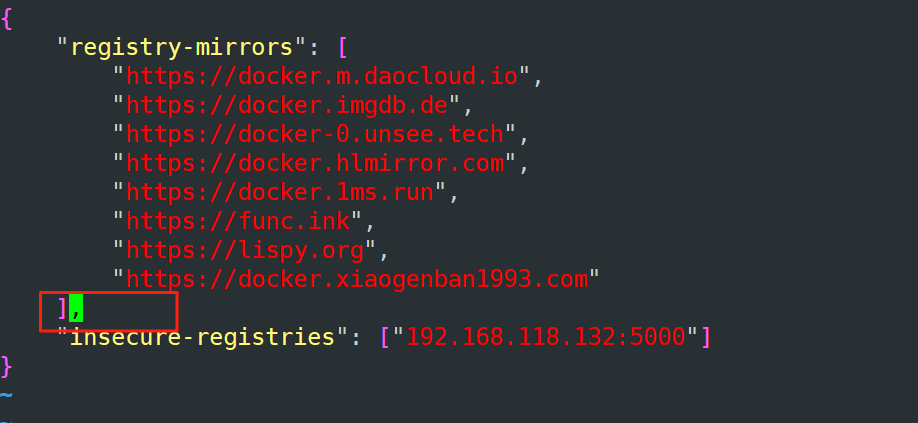
#修改docker配置文件/etc/docker/daemon.json
#让仓库使用http协议
"insecure-registries": ["172.19.100.5:5000"]	#http

docker push 192.168.118.132:5000/library/nginx:1.22.1

#验证是否传上去了
curl localhost:5000/v2/_catalog
docker login ccr.ccs.tencentyun.com
登录阿里云或腾讯云等创建镜像仓库
默认登录信息保存在 /root/.docker/config.json
#编码方式 echo "123456" | base64 echo "MTIzNDU2Cg==" | base64 -d #解编码
Harbor部署
tar xvf harbor-offline-installer-v2.12.2.tgz  -C /usr/local/
harbor/harbor.v2.12.2.tar.gz  # 离线镜像
harbor/prepare                # 重新生成配置文件脚本。如果Harbor安装成后修改了harbor.yml,就需要执行 prepare脚本
harbor/LICENSE
harbor/install.sh            # 安装脚本
harbor/common.sh             # 通用函数脚本
harbor/harbor.yml.tmpl       # 默认配置文件的模板,需要cp一个harbor.yml

步骤:
#修改配置文件harbor.yml
#hostname最好用域名,
hostname: reg.dec.nn
#pwmake 128随机生成一个密码
harbor_admin_password: FALUwjyKIs4B8ADNYh4jihUpysm
database:
	password: PYzOtsUdEbUB0v73bYNP@mesV3J
#mkdir -p /data/registry
data_volume: /data/registry

docker rm $(docker ps -qa) -f
./install.sh
docker ps	#等待状态都变成healthy

192.168.118.132	reg.dec.nn	#配置hosts文件支持域名访问
http://reg.dec.nn

vim /etc/docker/daemon.json
	"insecure-registries": ["reg.dec.nn"]
systemctl restart docker

vim /etc/hosts
192.168.118.132	reg.dec.nn
docker login reg.dec.nn


#新建项目wukong
docker run -itd nginx:1.22.1
docker tag nginx:1.22.1 reg.dec.nn/wukong/nginx:1.22.1
docker push reg.dec.nn/wukong/nginx:1.22.1

#配置证书,阿里云支持免费的50个证书
unzip reg.xxhf.cc_nginx.zip
mv reg.xxhf.cc_nginx /usr/local/harbor/certs
cd certs
	reg.xxhf.cc_bundle.crt   # 证书
	reg.xxhf.cc_bundle.pem
 	reg.xxhf.cc.csr          # 证书签发请求
 	reg.xxhf.cc.key          # 私钥

#可以使用md5sum+文件:来观看md5值是否发生改变来判断文件是否改变
#还可以使用diff找不同,来判断文件是否发生变化
diff reg.xxhf.cc_bundle.crt reg.xxhf.cc_bundle.pem

vim /usr/local/harbor/harbor.yml
https:
	port: 443
  	certificate: /usr/local/harbor/certs/reg.xxhf.cc_bundle.crt
  	private_key: /usr/local/harbor/certs/reg.xxhf.cc.key

./prepare
#重启 Harbor
#需要在配置文件路径下执行
docker compose down		# 删除所有的 harbor 容器
docker compose up -d	# 启动所有 Harbor 容器
策略

复制管理:可以帮助从阿里云拉下来,推给腾讯云

证书到期后更新证书
# 替换证书后重新生成配置文件
./prepare
docker compose down -v
docker compose up -d
搭建Harbor高可用

Harbor架构
- Data Access Layer 数据访问层
- Fundamental Services  基础服务层
  - Core: Harbor 核心服务
  - Quota Manager: 配额管理
  - Retention  Manager: 镜像保留策略管理
  - Chart Museum:  chart 管理  弃用
  - Docker Registry: 存储Docker镜像和处理docker push/pull 命令
- Consumers  消费者

Harbor 连接 1514 端口拒绝
#出现报错
Error response from daemon: failed to initialize logging driver: dial tcp [::1]:1514: connect: connection refused
#修改 /etc/rsyslog.conf
# Provides TCP syslog reception
$ModLoad imtcp
$InputTCPServerRun 1514

systemctl restart rsyslog.service

补充:(插件)
	./install.sh --with-trivy	#安装时进行漏洞扫描
	#参数在harbor.yml配置文件中

码道开发者社区,聚焦华为云码道 CodeArts 代码智能体,沉淀 Agent、Skill、鸿蒙开发实战内容,供开发者查阅资料、交流技术、分享工程实践
更多推荐


 10
10 0
0- 0


 已为社区贡献4条内容

所有评论(0)