uni-app 视图容器组件
视图容器组件,就是用来承载其他组件和内容的“盒子”。它们本身一般不直接展示内容,而是作为布局和结构的基础。你可以把它们理解为:页面的骨架、布局的容器。
所有的视图组件,包括view、swiper等,本身不显示任何可视化元素。它们的用途都是为了包裹其它真正显示的组件。
一、<view>
<view>本身没有太多复杂功能,主要用作布局容器,类似于 HTML 的 <div>,用于包裹各种元素内容。小程序平台如果使用 <div> ,编译时会被转换为 <view>。
<template>
  <view class="container">
    <view class="title">欢迎使用 uni-app</view>
    <view class="content">这是一个 view 容器</view>
  </view>
</template>

<style>
.container {
  padding: 20px;
}
.title {
  font-size: 24px;
  font-weight: bold;
}
.content {
  margin-top: 10px;
  color: #666;
}
</style>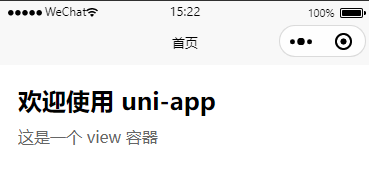
二、<scroll-view>可滚动视图
当内容超出容器大小时,可以使用 <scroll-view>实现滚动效果。
(一)基本语法
<scroll-view scroll-y style="height: 300px">
    <view v-for="item in list" :key="item.id" class="item">
      第{{ item.id }}项:{{ item.name }}
    </view>
</scroll-view>
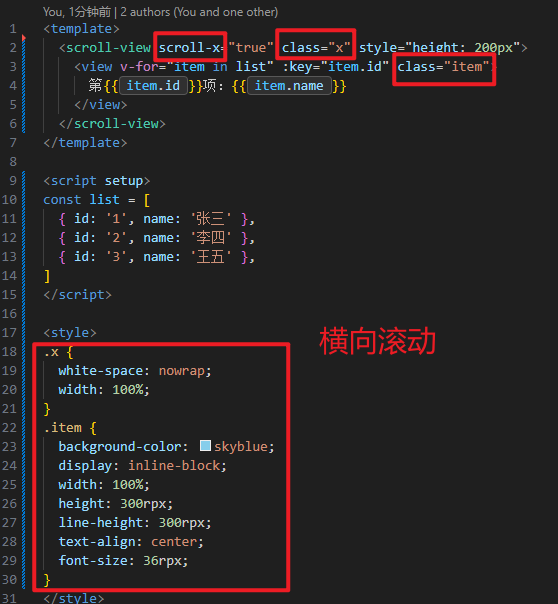
(二)常用属性
|
属性名 |
类型 |
说明 |
|---|---|---|
|
scroll-x |
Boolean |
允许横向滚动,默认 false |
|
scroll-y |
Boolean |
允许纵向滚动,默认 false |
|
upper-threshold |
Number |
距顶部/左边多远时触发 onScrollToUpper(默认50) |
|
lower-threshold |
Number |
距底部/右边多远时触发 onScrollToLower(默认50) |
|
scroll-top |
Number |
设置竖向滚动条位置 |
|
scroll-left |
Number |
设置横向滚动条位置 |
(三)示例
<template>
  <scroll-view scroll-y style="height: 300px">
    <view v-for="item in list" :key="item.id" class="item">
      第{{ item.id }}项:{{ item.name }}
    </view>
  </scroll-view>
</template>

<script setup>
const list = [
  { id: '1', name: '张三' },
  { id: '2', name: '李四' },
  { id: '3', name: '王五' },
  { id: '4', name: '赵六' },
  { id: '5', name: '钱七' },
  { id: '6', name: '孙八' },
  { id: '7', name: '周九' },
  { id: '8', name: '吴十' },
]
</script>

<style>
.item {
  padding: 10px;
  border-bottom: 5px solid #eee;
  background-color: skyblue;
}
</style>
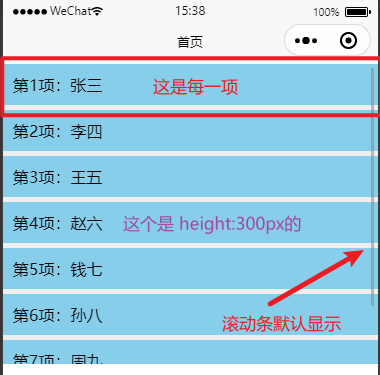
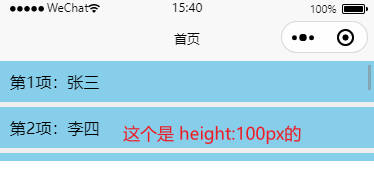
注意:使用 scroll-y或 scroll-x时,必须给 scroll-view 设置固定高度(如 style="height: 300px"),否则无法触发滚动。
三、<swiper>轮播图容器
(一)基本语法
<template>
  <swiper autoplay interval="3000" duration="1000" indicator-dots circular>
    <swiper-item>
      <image src="/static/1.jpg" mode="aspectFill" style="width: 100%; height: 300px;"></image>
    </swiper-item>
    <swiper-item>
      <image src="/static/2.jpg" mode="aspectFill" style="width: 100%; height: 300px;"></image>
    </swiper-item>
    <swiper-item>
      <image src="/static/3.jpg" mode="aspectFill" style="width: 100%; height: 300px;"></image>
    </swiper-item>
  </swiper>
</template>
(二)常用属性
|
属性名 |
类型 |
说明 |
|---|---|---|
|
autoplay |
Boolean |
是否自动切换,默认 false |
|
interval |
Number |
自动切换时间间隔,单位 ms |
|
duration |
Number |
滑动动画时长,单位 ms(默认 500) |
|
indicator-dots |
Boolean |
是否显示面板指示点,默认 false |
|
circular |
Boolean |
是否采用衔接滑动(循环滚动) |
|
current |
Number |
当前所在滑块的 index(从 0 开始) |
(三)示例
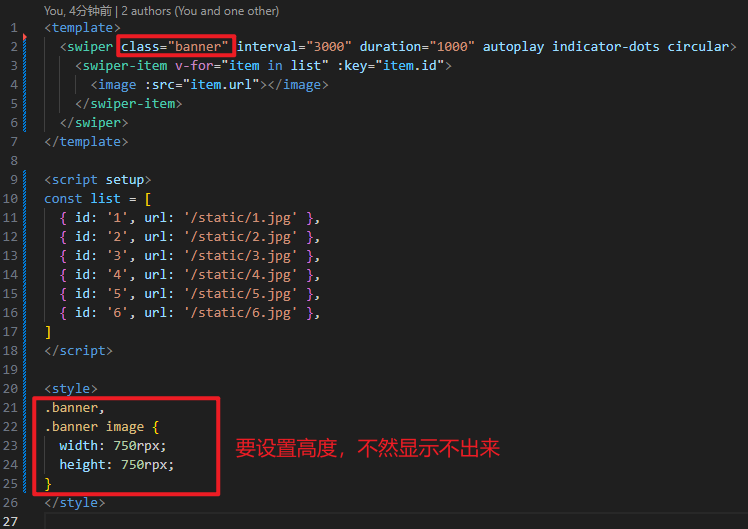
<template>
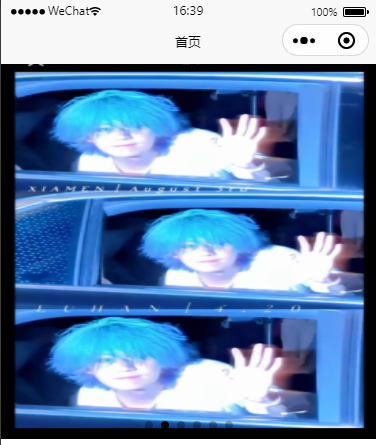
  <swiper class="banner" interval="3000" duration="1000" autoplay indicator-dots circular>
    <swiper-item v-for="item in list" :key="item.id">
      <image :src="item.url"></image>
    </swiper-item>
  </swiper>
</template>

<script setup>
const list = [
  { id: '1', url: '/static/1.jpg' },
  { id: '2', url: '/static/2.jpg' },
  { id: '3', url: '/static/3.jpg' },
  { id: '4', url: '/static/4.jpg' },
  { id: '5', url: '/static/5.jpg' },
  { id: '6', url: '/static/6.jpg' },
]
</script>

<style>
.banner,
.banner image {
  width: 750rpx;
  height: 750rpx;
}
</style>
注意:
-
每个轮播项必须放在
<swiper-item>内; -
图片建议设置固定宽高,或者使用
mode属性控制显示方式; -
轮播图常用于首页 Banner 等场景。
四、总结
|
视图容器组件 |
用于承载页面内容的“盒子”,如 |
|
最常用的容器 |
|
|
可滚动容器 |
|
|
轮播容器 |
|

码道开发者社区,聚焦华为云码道 CodeArts 代码智能体,沉淀 Agent、Skill、鸿蒙开发实战内容,供开发者查阅资料、交流技术、分享工程实践
更多推荐
 31
31 0
0- 0


 已为社区贡献1条内容

所有评论(0)