dockerfile案例
·
dockerfile案例
一、构建nginx镜像
1、确保有centos镜像(基于centos镜像构建nginx镜像)
[root@stw ~]# docker images
REPOSITORY   TAG       IMAGE ID       CREATED        SIZE
stwhttpd     v1        765a412de517   8 days ago     535MB
stwbuntu     v1        73ae18a02dfa   8 days ago     146MB
centosstw    v1        8afcbcc87f39   8 days ago     204MB
galaxy       v1        358cb5259f15   8 days ago     204MB
nginx        latest    41f689c20910   8 weeks ago    192MB
httpd        latest    65005131d37e   2 months ago   117MB
centos       7         eeb6ee3f44bd   4 years ago    204MB
2、vim Dockerfile
[root@stw ~]# vim Dockerfile
[root@stw ~]# cat Dockerfile
FROM centos:7
RUN rm -rf /etc/yum.repos.d/*
ADD Centos-7.repo /etc/yum.repos.d/
ADD epel-7.repo /etc/yum.repos.d/
RUN yum -y install nginx
EXPOSE 80
CMD [ "/usr/sbin/nginx","-g","daemon off;" ]
3、构建镜像(build)
[root@stw ~]# docker build -t nginx:v1 .
[+] Building 55.4s (10/10) FINISHED                                            docker:default
 => [internal] load build definition from Dockerfile                                     0.0s
 => => transferring dockerfile: 233B
......
......
[root@stw ~]# docker images
REPOSITORY   TAG       IMAGE ID       CREATED         SIZE
nginx        v1        a5e908e18c94   8 seconds ago   536MB
stwhttpd     v1        765a412de517   8 days ago      535MB
stwbuntu     v1        73ae18a02dfa   8 days ago      146MB
centosstw    v1        8afcbcc87f39   8 days ago      204MB
galaxy       v1        358cb5259f15   8 days ago      204MB
nginx        latest    41f689c20910   8 weeks ago     192MB
httpd        latest    65005131d37e   2 months ago    117MB
centos       7         eeb6ee3f44bd   4 years ago     204MB
[root@stw ~]# docker ps -a
CONTAINER ID   IMAGE          COMMAND                  CREATED      STATUS                    PORTS     NAMES
913c3b69e446   stwhttpd:v1    "/usr/sbin/httpd -D …"   8 days ago   Exited (0) 8 days ago               stwhttpd1
de44b55d5341   centosstw:v1   "/bin/bash"              8 days ago   Exited (137) 8 days ago             stw2
48a18e33e824   centos:7       "/bin/bash"              8 days ago   Exited (0) 8 days ago               stw
[root@stw ~]# docker container prune   //清空掉所有已停止的容器
WARNING! This will remove all stopped containers.
Are you sure you want to continue? [y/N] y
Deleted Containers:
913c3b69e446b27b27ffc8a243fa9ba5920471792b8d3391b740bdae0d0976ea
de44b55d5341e382111556dee14766b57c14501877643aad4fa301e7a41942c4
48a18e33e824e29a9291556a368bac4549d541be8b834dbac024f431f138134d

Total reclaimed space: 5.371kB
[root@stw ~]# docker ps -a
CONTAINER ID   IMAGE     COMMAND   CREATED   STATUS    PORTS     NAMES
4、将镜像运行成容器
[root@stw ~]# docker run -itd --name nginx -p 80:80 nginx:v1
bd3781b0038f01e52f2505687ffb4ce172a9983aa0aa1f282dd4159702e0ccac
[root@stw ~]# docker ps
CONTAINER ID   IMAGE      COMMAND                  CREATED         STATUS         PORTS                               NAMES
bd3781b0038f   nginx:v1   "/usr/sbin/nginx -g …"   6 seconds ago   Up 6 seconds   0.0.0.0:80->80/tcp, :::80->80/tcp   nginx
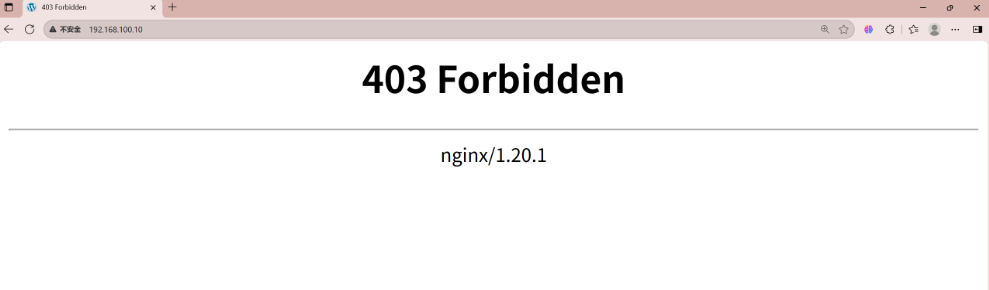
5、对nginx进行访问(网页有问题,此时是基于镜像构建的nginx镜像)
6、进入容器修改网页
[root@stw ~]# docker exec -it nginx /bin/bash
[root@bd3781b0038f /]# cd /usr/share/nginx/
[root@bd3781b0038f nginx]# ls
html  modules
[root@bd3781b0038f nginx]# cd html
[root@bd3781b0038f html]# ls
404.html  50x.html  en-US  icons  img  index.html  nginx-logo.png  poweredby.png
[root@bd3781b0038f html]# rm -rf index.html
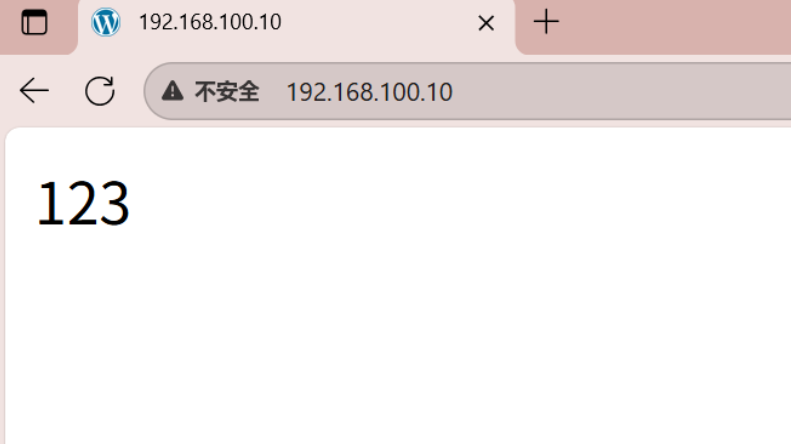
[root@bd3781b0038f html]# echo 123 > index.html
7、再次测试
8、将修改网页写入Dockerfile
[root@stw ~]# vim Dockerfile
[root@stw ~]# cat Dockerfile
FROM centos:7
RUN rm -rf /etc/yum.repos.d/*
ADD Centos-7.repo /etc/yum.repos.d/
ADD epel-7.repo /etc/yum.repos.d/
RUN yum -y install nginx
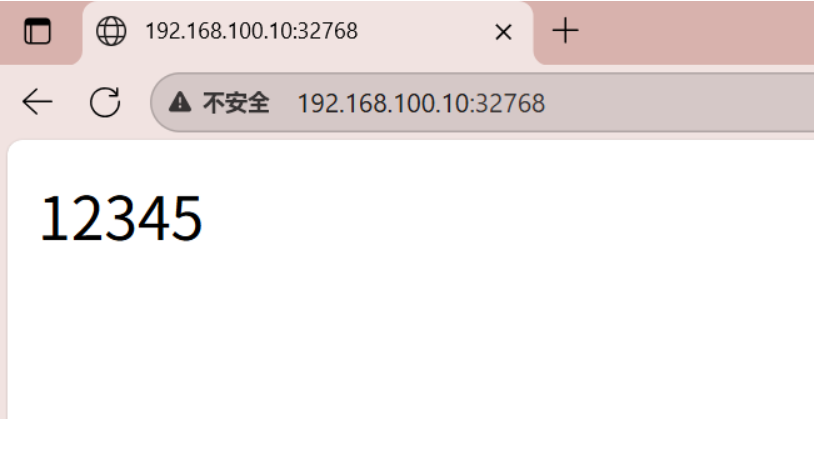
RUN rm -rf /usr/share/nginx/html/index.html && echo 12345 > /usr/share/nginx/html/index.html
EXPOSE 80
CMD [ "/usr/sbin/nginx","-g","daemon off;" ]
[root@stw ~]# docker build -t nginx:v2 .
[+] Building 0.7s (11/11) FINISHED                                             docker:default
 => [internal] load build definition from Dockerfile                                     0.0s
 => => transferring dockerfile: 326B
......
......
[root@stw ~]# docker run -itd --name nginx2 -P nginx:v2
44f4ea6fb6f62e389372e480edf8971eeba46d91bb652535c8bf45224e5fc2fa
[root@stw ~]# docker ps
CONTAINER ID   IMAGE      COMMAND                  CREATED          STATUS          PORTS                                     NAMES
44f4ea6fb6f6   nginx:v2   "/usr/sbin/nginx -g …"   6 seconds ago    Up 5 seconds    0.0.0.0:32768->80/tcp, :::32768->80/tcp   nginx2
bd3781b0038f   nginx:v1   "/usr/sbin/nginx -g …"   10 minutes ago   Up 10 minutes   0.0.0.0:80->80/tcp, :::80->80/tcp         nginx
测试访问
二、扫雷游戏案例(本地下载)
1、将扫雷的压缩包文件上传到本地
[root@stw ~]# rz -E
rz waiting to receive.
[root@stw ~]# ls
anaconda-ks.cfg  Documents             Music       Templates
Centos-7.repo    Downloads             Pictures    ubuntu-12.04-x86-minimal.tar.gz
Desktop          epel-7.repo           Public      Videos
Dockerfile       initial-setup-ks.cfg  saolei.zip
2、vim Dockerfile
[root@stw ~]# vim Dockerfile
[root@stw ~]# cat Dockerfile
FROM centos:7
RUN rm -rf /etc/yum.repos.d/*
ADD Centos-7.repo /etc/yum.repos.d/
ADD epel-7.repo /etc/yum.repos.d/
RUN yum -y install tomcat unzip
WORKDIR /var/lib/tomcat/webapps/
ADD saolei.zip .
RUN unzip saolei.zip && mv saolei ROOT
ADD init.sh /init.sh
EXPOSE 8080
CMD ["/bin/bash","/init.sh"]
3、vim init.sh
[root@stw ~]# vim init.sh
[root@stw ~]# cat init.sh
#!/bin/bash
/usr/libexec/tomcat/server start
4、构建镜像(build)
[root@stw ~]# docker build -t saolei:v1 .
[+] Building 85.8s (14/14) FINISHED                                            docker:default
 => [internal] load build definition from Dockerfile                                     0.0s
 => => transferring dockerfile: 336B
......
......
[root@stw ~]# docker images
REPOSITORY   TAG       IMAGE ID       CREATED          SIZE
saolei       v1        b5191934d451   54 seconds ago   716MB
nginx        v2        f83498543c5f   16 minutes ago   536MB
nginx        v1        a5e908e18c94   30 minutes ago   536MB
stwhttpd     v1        765a412de517   8 days ago       535MB
stwbuntu     v1        73ae18a02dfa   8 days ago       146MB
centosstw    v1        8afcbcc87f39   8 days ago       204MB
galaxy       v1        358cb5259f15   8 days ago       204MB
nginx        latest    41f689c20910   8 weeks ago      192MB
httpd        latest    65005131d37e   2 months ago     117MB
centos       7         eeb6ee3f44bd   4 years ago      204MB
5、将镜像运行成容器
[root@stw ~]# docker run -itd --name saolei -P saolei:v1
2ec2805506dadf592e08eb613b26f3528987fb13b7a23d270316476100fdd7ed
[root@stw ~]# docker ps
CONTAINER ID   IMAGE       COMMAND                  CREATED          STATUS          PORTS                                         NAMES
2ec2805506da   saolei:v1   "/bin/bash /init.sh"     6 seconds ago    Up 6 seconds    0.0.0.0:32769->8080/tcp, :::32769->8080/tcp   saolei
44f4ea6fb6f6   nginx:v2    "/usr/sbin/nginx -g …"   16 minutes ago   Up 16 minutes   0.0.0.0:32768->80/tcp, :::32768->80/tcp       nginx2
bd3781b0038f   nginx:v1    "/usr/sbin/nginx -g …"   27 minutes ago   Up 27 minutes   0.0.0.0:80->80/tcp, :::80->80/tcp             nginx
[root@stw ~]# docker exec -it saolei /bin/bash
[root@2ec2805506da webapps]# cd ROOT
[root@2ec2805506da ROOT]# ls
imgs  saolei.jsp
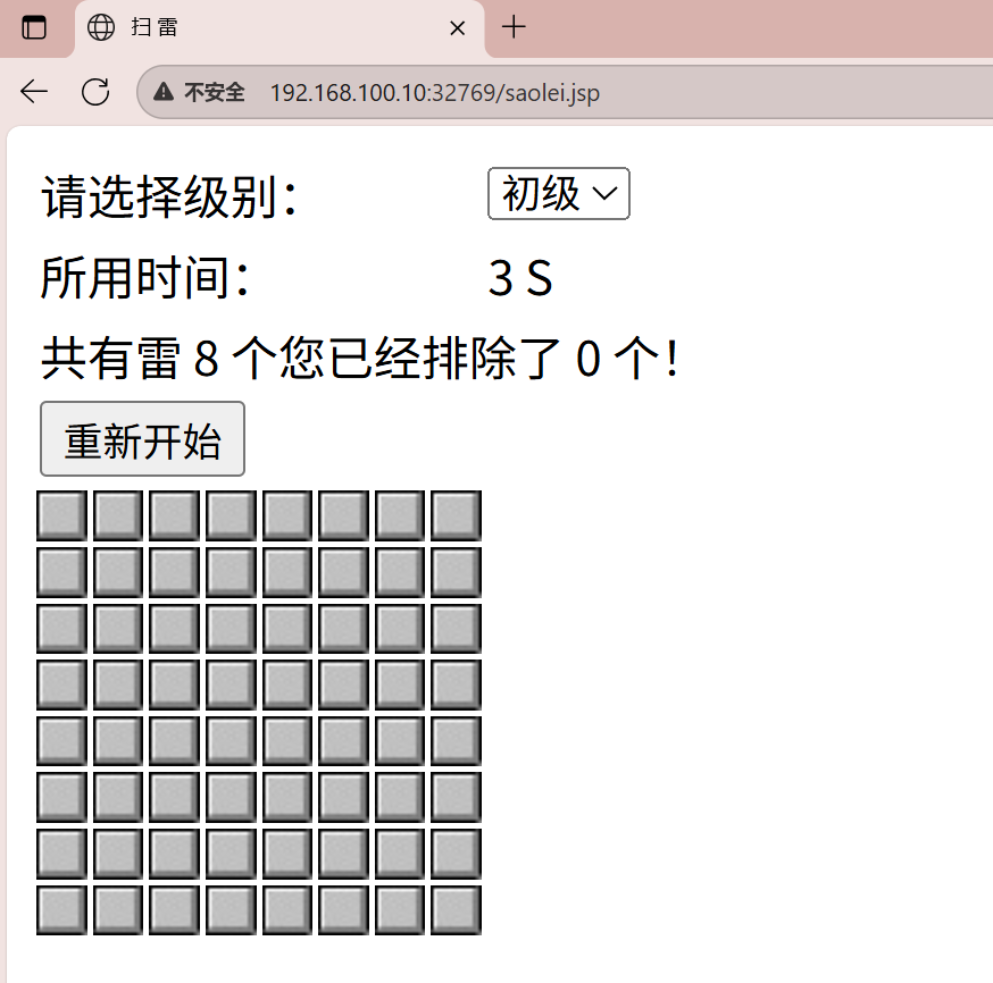
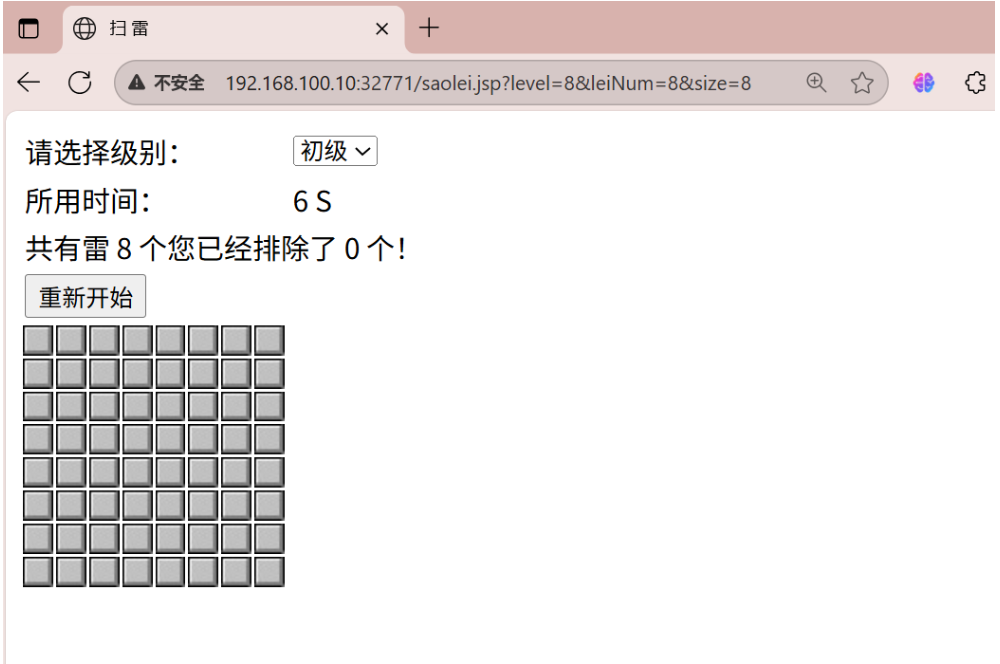
6、测试访问( 192.168.100.10:32769/saolei.jsp )
网页下载(配置apache)
1、确保80端口没有被占用
[root@stw ~]# ss -anlt
State      Recv-Q Send-Q   Local Address:Port                  Peer Address:Po
LISTEN     0      128                  *:111                              *:*
LISTEN     0      128                  *:80                               *:*
LISTEN     0      128                  *:6000                             *:*
LISTEN     0      5        192.168.122.1:53                               *:*
LISTEN     0      128                  *:22                               *:*
LISTEN     0      128          127.0.0.1:631                              *:*
LISTEN     0      100          127.0.0.1:25                               *:*
LISTEN     0      128          127.0.0.1:6010                             *:*
LISTEN     0      128                  *:32768                            *:*
LISTEN     0      128                  *:32769                            *:*
LISTEN     0      128                  *:32770                            *:*
LISTEN     0      128                 :::111                             :::*
LISTEN     0      128                 :::80                              :::*
LISTEN     0      128                 :::6000                            :::*
LISTEN     0      128                 :::22                              :::*
LISTEN     0      128                ::1:631                             :::*
LISTEN     0      100                ::1:25                              :::*
LISTEN     0      128                ::1:6010                            :::*
LISTEN     0      128                 :::32768                           :::*
LISTEN     0      128                 :::32769                           :::*
LISTEN     0      128                 :::32770                           :::*
[root@stw ~]# ss -anltp | grep :80
LISTEN     0      128          *:80                       *:*                 proxy",pid=10845,fd=4))
LISTEN     0      128         :::80                      :::*                 proxy",pid=10854,fd=4))
[root@stw ~]# docker ps
CONTAINER ID   IMAGE       COMMAND                  CREATED       STATUS                                  NAMES
22d260e1aa70   kod:v1      "/bin/bash /init.sh"     5 hours ago   Up 5 hours  tcp, :::32770->80/tcp       kod
2ec2805506da   saolei:v1   "/bin/bash /init.sh"     5 hours ago   Up 5 hours  0/tcp, :::32769->8080/tcp   saolei
44f4ea6fb6f6   nginx:v2    "/usr/sbin/nginx -g …"   6 hours ago   Up 6 hours  tcp, :::32768->80/tcp       nginx2
bd3781b0038f   nginx:v1    "/usr/sbin/nginx -g …"   6 hours ago   Up 6 hours  , :::80->80/tcp             nginx
[root@stw ~]# docker stop bd3781b0038f
bd3781b0038f
[root@stw ~]# docker rm bd3781b0038f
bd3781b0038f
[root@stw ~]# ss -anlt
State       Recv-Q Send-Q   Local Address:Port                  Peer Address:P
LISTEN      0      128                  *:111                              *:*
LISTEN      0      128                  *:6000                             *:*
LISTEN      0      5        192.168.122.1:53                               *:*
LISTEN      0      128                  *:22                               *:*
LISTEN      0      128          127.0.0.1:631                              *:*
LISTEN      0      100          127.0.0.1:25                               *:*
LISTEN      0      128          127.0.0.1:6010                             *:*
LISTEN      0      128                  *:32768                            *:*
LISTEN      0      128                  *:32769                            *:*
LISTEN      0      128                  *:32770                            *:*
LISTEN      0      128                 :::111                             :::*
LISTEN      0      128                 :::6000                            :::*
LISTEN      0      128                 :::22                              :::*
LISTEN      0      128                ::1:631                             :::*
LISTEN      0      100                ::1:25                              :::*
LISTEN      0      128                ::1:6010                            :::*
LISTEN      0      128                 :::32768                           :::*
LISTEN      0      128                 :::32769                           :::*
LISTEN      0      128                 :::32770                           :::
2、下载httpd服务
在docker主机中部署apache服务,并将saolei.zip放置到该站点中,使其通过http://docker主机ip/saolei.zip可以下载
(1)yum -y install httpd
[root@stw ~]# yum -y install httpd
(2)将Centos-7.repo和epel-7.repo文件上传至/root目录
[root@stw ~]# cd /root
[root@stw ~]# ls
anaconda-ks.cfg  epel-7.repo           saolei.zip
Centos-7.repo    initial-setup-ks.cfg  Templates
Desktop          init.sh               ubuntu-12.04-x86-minimal.tar.gz
Dockerfile       Music                 Videos
Documents        Pictures
Downloads        Public
(3)将saolei.zip包放置/var/www/html目录下
[root@stw ~]# cd /var/www/html
[root@stw html]# ls
[root@stw html]# rz -E
rz waiting to receive.
[root@stw html]# ls
saolei.zip
[root@stw html]# touch index.html
[root@stw html]# ls
index.html  saolei.zip
(4)重启apache服务并设置下次启动生效
[root@stw html]# systemctl restart httpd
[root@stw html]# systemctl enable httpd
Created symlink from /etc/systemd/system/multi-user.target.wants/httpd.service to /usr/lib/systemd/system/httpd.service.
[root@stw html]# ss -anlt
State       Recv-Q Send-Q Local Address:Port               Peer Address:Port
LISTEN      0      128        *:111                    *:*
LISTEN      0      128        *:6000                   *:*
LISTEN      0      5      192.168.122.1:53                     *:*
LISTEN      0      128        *:22                     *:*
LISTEN      0      128    127.0.0.1:631                    *:*
LISTEN      0      100    127.0.0.1:25                     *:*
LISTEN      0      128    127.0.0.1:6010                   *:*
LISTEN      0      128        *:32768                  *:*
LISTEN      0      128        *:32769                  *:*
LISTEN      0      128        *:32770                  *:*
LISTEN      0      128       :::111                   :::*
LISTEN      0      128       :::80                    :::*
LISTEN      0      128       :::6000                  :::*
LISTEN      0      128       :::22                    :::*
LISTEN      0      128      ::1:631                   :::*
LISTEN      0      100      ::1:25                    :::*
LISTEN      0      128      ::1:6010                  :::*
LISTEN      0      128       :::32768                 :::*
LISTEN      0      128       :::32769                 :::*
LISTEN      0      128       :::32770                 :::*
3、vim Dockerfile并且vim init.sh
[root@stw ~]# vim Dockerfile
[root@stw ~]# cat Dockerfile
FROM centos:7
RUN rm -rf /etc/yum.repos.d/*
ADD Centos-7.repo /etc/yum.repos.d/
ADD epel-7.repo /etc/yum.repos.d/
RUN yum -y install tomcat unzip curl
WORKDIR /var/lib/tomcat/webapps/
RUN curl -O http://192.168.100.10/saolei.zip && \
unzip saolei.zip && \
mv saolei ROOT
ADD init.sh /init.sh
EXPOSE 8080
CMD ["/bin/bash","/init.sh"]

[root@stw ~]# vim init.sh
[root@stw ~]# cat init.sh
#!/bin/bash
/usr/libexec/tomcat/server start
4、构建镜像并运行成容器
[root@stw ~]# docker images
REPOSITORY   TAG       IMAGE ID       CREATED        SIZE
kod          v1        c3fd0553b7d4   5 hours ago    676MB
saolei       v1        b5191934d451   6 hours ago    716MB
nginx        v2        f83498543c5f   6 hours ago    536MB
nginx        v1        a5e908e18c94   6 hours ago    536MB
stwhttpd     v1        765a412de517   9 days ago     535MB
stwbuntu     v1        73ae18a02dfa   9 days ago     146MB
centosstw    v1        8afcbcc87f39   9 days ago     204MB
galaxy       v1        358cb5259f15   9 days ago     204MB
nginx        latest    41f689c20910   8 weeks ago    192MB
httpd        latest    65005131d37e   2 months ago   117MB
centos       7         eeb6ee3f44bd   4 years ago    204MB
[root@stw ~]# docker build -t saolei:v2 .
[+] Building 87.1s (13/13) FINISHED                           docker:default
 => [internal] load build definition from Dockerfile                    0.0s
 => => transferring dockerfile: 372B
......
......
[root@stw ~]# docker ps
CONTAINER ID   IMAGE       COMMAND                  CREATED       STATUS       PORTS                                         NAMES
22d260e1aa70   kod:v1      "/bin/bash /init.sh"     5 hours ago   Up 5 hours   0.0.0.0:32770->80/tcp, :::32770->80/tcp       kod
2ec2805506da   saolei:v1   "/bin/bash /init.sh"     6 hours ago   Up 6 hours   0.0.0.0:32769->8080/tcp, :::32769->8080/tcp   saolei
44f4ea6fb6f6   nginx:v2    "/usr/sbin/nginx -g …"   6 hours ago   Up 6 hours   0.0.0.0:32768->80/tcp, :::32768->80/tcp       nginx2
[root@stw ~]# docker run -itd --name saolei2 -P saolei:v2
83aaf5235773c95d4528ed726aaa53e0d90f9394bfe62e8b29a4e167b5c9c013
[root@stw ~]# docker ps
CONTAINER ID   IMAGE       COMMAND                  CREATED          STATUS          PORTS                                         NAMES
83aaf5235773   saolei:v2   "/bin/bash /init.sh"     13 seconds ago   Up 12 seconds   0.0.0.0:32771->8080/tcp, :::32771->8080/tcp   saolei2
22d260e1aa70   kod:v1      "/bin/bash /init.sh"     5 hours ago      Up 5 hours      0.0.0.0:32770->80/tcp, :::32770->80/tcp       kod
2ec2805506da   saolei:v1   "/bin/bash /init.sh"     6 hours ago      Up 6 hours      0.0.0.0:32769->8080/tcp, :::32769->8080/tcp   saolei
44f4ea6fb6f6   nginx:v2    "/usr/sbin/nginx -g …"   6 hours ago      Up 6 hours      0.0.0.0:32768->80/tcp, :::32768->80/tcp       nginx2
5、测试访问
三、可道云平台案例
1、创建目录(/opt/dockerfile/kod)并导入所需要的包文件(四个)
[root@stw ~]# cd /opt
[root@stw opt]# ls
containerd  rh
[root@stw opt]# mkdir dockerfile
[root@stw opt]# cd dockerfile
[root@stw dockerfile]# mkdir kod
[root@stw dockerfile]# cd kod
[root@stw kod]# ls
[root@stw kod]# rz -E
rz waiting to receive.
[root@stw kod]# rz -E
rz waiting to receive.
[root@stw kod]# rz -E
rz waiting to receive.
[root@stw kod]# rz -E
rz waiting to receive.
[root@stw kod]# ls
Centos-7.repo  epel-7.repo  kodexplorer4.40.zip  nginx.conf
[root@stw kod]# cat nginx.conf   //用于覆盖即将要搭建的nginx的nginx.conf文件
worker_processes 1;
events {
	worker_connections 1024;
}
http {
	include mime.types;
	default_type application/octet-stream;
	sendfile on;
	keepalive_timeout 65;
	server {
		listen 80;
		server_name localhost;
		location / {
			root /code;
			index index.php index.html index.htm;
		}
		location ~ \.php$ {
			root /code;
			fastcgi_pass 127.0.0.1:9000;
			fastcgi_index index.php;
			fastcgi_param SCRIPT_FILENAME /code$fastcgi_script_name;
			include fastcgi_params;
		}
	}
}
2、vim dockerfile
[root@stw kod]# vim dockerfile
[root@stw kod]# cat dockerfile
FROM centos:7
RUN rm -rf /etc/yum.repos.d/*
ADD Centos-7.repo /etc/yum.repos.d/
ADD epel-7.repo /etc/yum.repos.d/
RUN yum -y install nginx php-fpm php-gd php-mbstring unzip
RUN sed -i '/^user/c user=nginx' /etc/php-fpm.d/www.conf
RUN sed -i '/^group/c group=nginx' /etc/php-fpm.d/www.conf
COPY nginx.conf /etc/nginx/nginx.conf
RUN mkdir /code
WORKDIR /code
COPY kodexplorer4.40.zip .
RUN unzip kodexplorer4.40.zip
RUN chown -R nginx.nginx .
ADD init.sh /init.sh
EXPOSE 80
CMD ["/bin/bash","/init.sh"]
3、vim init.sh
[root@stw kod]# vim init.sh
[root@stw kod]# cat init.sh
#!/ban/bash
php-fpm -D
nginx -g 'daemon off;'
4、构建镜像(build)并将镜像运行成容器
[root@stw kod]# docker build -t kod:v1 .
[+] Building 70.9s (19/19) FINISHED                                            docker:default
 => [internal] load build definition from dockerfile                                     0.0s
 => => transferring dockerfile: 540B
......
......
[root@stw kod]# docker run -itd --name kod -P kod:v1
22d260e1aa70555283721fbf185ba780434ce621cdb83a2f7e9679307f72b892
[root@stw kod]# docker ps
CONTAINER ID   IMAGE       COMMAND                  CREATED             STATUS             PORTS                                         NAMES
22d260e1aa70   kod:v1      "/bin/bash /init.sh"     11 seconds ago      Up 10 seconds      0.0.0.0:32770->80/tcp, :::32770->80/tcp       kod
2ec2805506da   saolei:v1   "/bin/bash /init.sh"     39 minutes ago      Up 39 minutes      0.0.0.0:32769->8080/tcp, :::32769->8080/tcp   saolei
44f4ea6fb6f6   nginx:v2    "/usr/sbin/nginx -g …"   56 minutes ago      Up 56 minutes      0.0.0.0:32768->80/tcp, :::32768->80/tcp       nginx2
bd3781b0038f   nginx:v1    "/usr/sbin/nginx -g …"   About an hour ago   Up About an hour   0.0.0.0:80->80/tcp, :::80->80/tcp             nginx
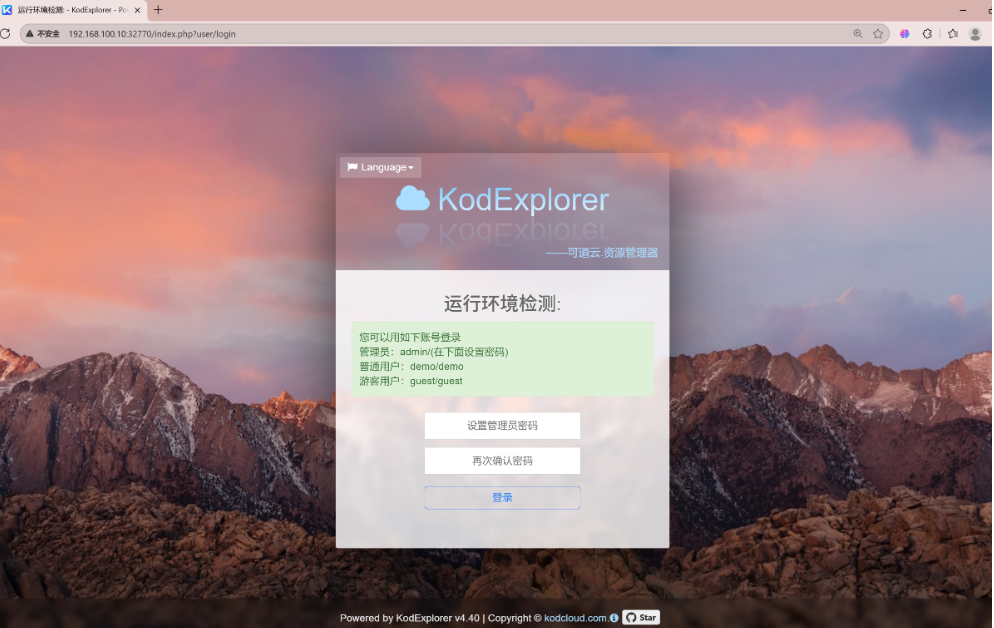
5、测试访问

码道开发者社区,聚焦华为云码道 CodeArts 代码智能体,沉淀 Agent、Skill、鸿蒙开发实战内容,供开发者查阅资料、交流技术、分享工程实践
更多推荐


 6
6 0
0- 0


 已为社区贡献8条内容

所有评论(0)