docker仓库
docker仓库
docker公有仓库
阿里云公有仓库
阿里云容器镜像服务为我们提供了镜像加速器和免费的镜像仓库。接下来演示如何使用阿里云仓库。
1、登录https://cr.console.aliyun.com/cn-hangzhou/instances/repositories阿里云控制台首页。创建
镜像仓库。命名空间名称为wsgalaxy,仓库名称为ws。我们的镜像就是要上传到wsgalaxy/ws中。如图
所示。
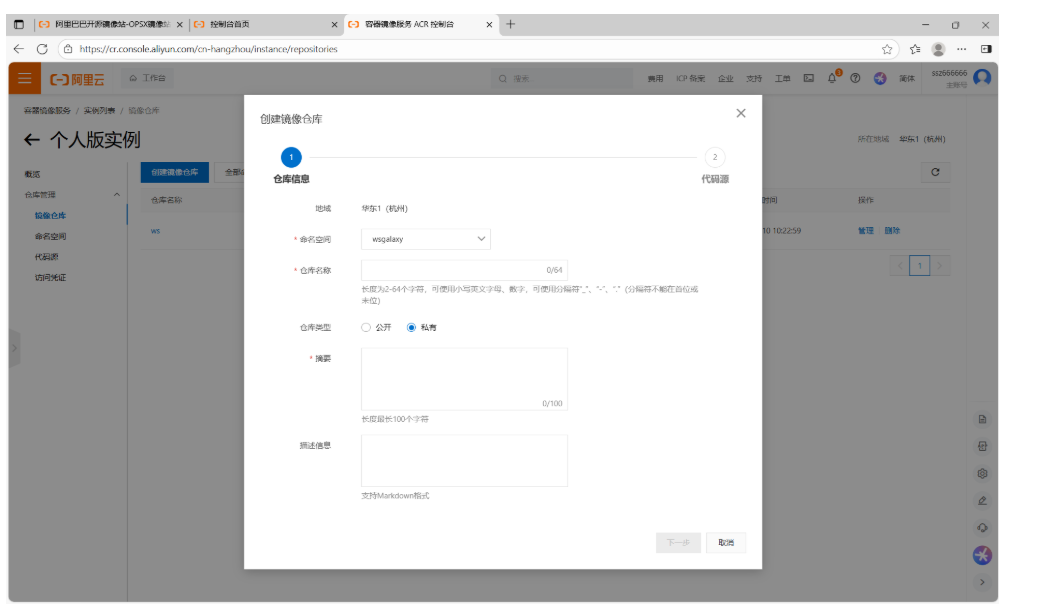
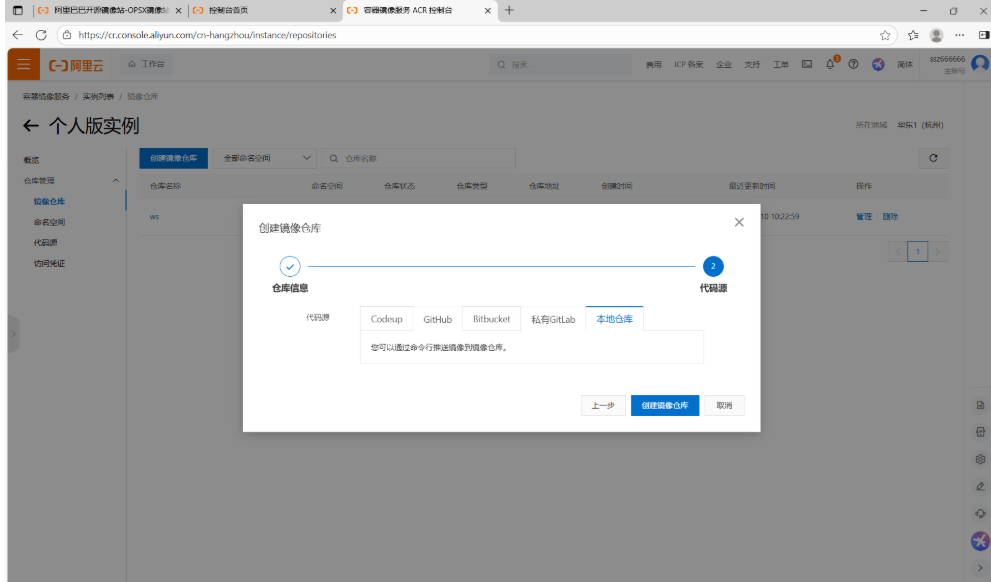
2、在Dokcer host上登陆阿里云仓库,并上传镜像。这里需要注意阿里云仓库对镜像名的格式要求。
[root@ws ~]# docker login --username=ssz666666 crpi-2ton1riraf31jeap.cn-hangzhou.personal.cr.aliyuncs.com
Password:
WARNING! Your password will be stored unencrypted in /root/.docker/config.json.
Configure a credential helper to remove this warning. See
https://docs.docker.com/engine/reference/commandline/login/#credentials-store

Login Succeeded
[root@ws ~]# docker tag centos:7 crpi-2ton1riraf31jeap.cn-hangzhou.personal.cr.aliyuncs.com/wsgalaxy/ws:centos
[root@ws ~]# docker push crpi-2ton1riraf31jeap.cn-hangzhou.personal.cr.aliyuncs.com/wsgalaxy/ws:centos
The push refers to repository [crpi-2ton1riraf31jeap.cn-hangzhou.personal.cr.aliyuncs.com/wsgalaxy/ws]
174f56854903: Pushed
centos: digest: sha256:dead07b4d8ed7e29e98de0f4504d87e8880d4347859d839686a31da35a3b532f size: 529
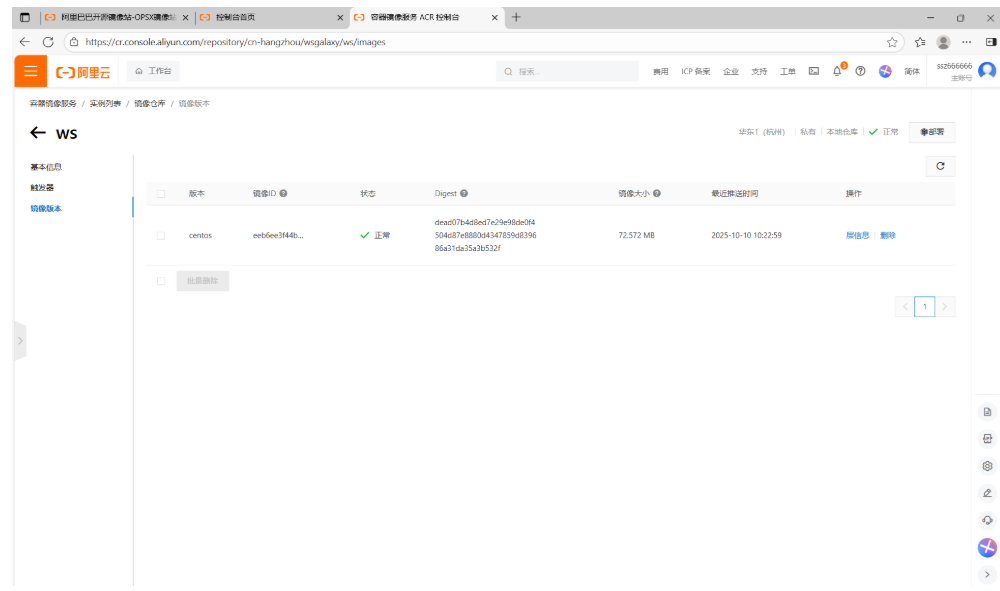
3、查看ws仓库的镜像版本,可以看到之前上传的镜像,如果要删除镜像,只能在web管理界面上操
作。如图所示
docker私有仓库
registry仓库
在Docker中,当我们执行docker pull的时候 ,它实际上是从registry.hub.docker.com这个地址去查找,这就是Docker公司为我们提供的公共仓库。在工作中,我们不可能把企业项目镜像push到公有仓库进行管理。所以为了更好的管理镜像,Docker不仅提供了一个中央仓库,同时也允许我们搭建本地私有仓库,Docker官方提供了一个搭建私有仓库的镜像 registry 。
上传镜像到docker registry私有仓库
1、下载registry镜像,运行容器并暴露5000端口,同时添加–restart always参数,可是使容器随着Docker host的启动而启动。
[root@ws ~]# docker pull registry:2
2: Pulling from library/registry
44cf07d57ee4: Pull complete
bbbdd6c6894b: Pull complete
8e82f80af0de: Pull complete
3493bf46cdec: Pull complete
6d464ea18732: Pull complete
Digest: sha256:a3d8aaa63ed8681a604f1dea0aa03f100d5895b6a58ace528858a7b332415373
Status: Downloaded newer image for registry:2
docker.io/library/registry:2
[root@ws ~]# docker run -itd -p 5000:5000 --restart always --name wsregistry registry:2
6c9b1619103cb51575754a637b0daaa168f44be6b0f0261686391b283c95b65d
[root@ws ~]# docker ps
CONTAINER ID   IMAGE        COMMAND                   CREATED          STATUS          PORTS                                       NAMES
6c9b1619103c   registry:2   "/entrypoint.sh /etc…"   26 seconds ago   Up 25 seconds   0.0.0.0:5000->5000/tcp, :::5000->5000/tcp   wsregistry
2、registry默认是不需要身份验证就能直接上传镜像,但是需要修改镜像名来指定仓库地址,镜像格式为ip:port/xxx:tag,在通过docker push将该镜像推送到私有仓库。
[root@ws ~]# docker tag centos:7 192.168.110.10:5000/centos:7
[root@ws ~]# docker images
REPOSITORY                   TAG       IMAGE ID       CREATED       SIZE
nginx                        latest    41f689c20910   8 weeks ago   192MB
registry                     2         26b2eb03618e   2 years ago   25.4MB
centos                       7         eeb6ee3f44bd   4 years ago   204MB
192.168.110.10:5000/centos   7         eeb6ee3f44bd   4 years ago   204MB
3、设置docker的私有仓库地址
[root@ws ~]# cat /etc/docker/daemon.json
{
"registry-mirrors": [
"https://docker.m.daocloud.io",
"https://dockerproxy.com",
"https://docker.mirrors.ustc.edu.cn",
"https://docker.nju.edu.cn"
],"insecure-registries": ["192.168.110.10:5000"]
}
[root@ws ~]# systemctl daemon-reload
[root@ws ~]# systemctl restart docker
[root@ws ~]# docker push 192.168.110.10:5000/centos:7
The push refers to repository [192.168.110.10:5000/centos]
174f56854903: Pushed
7: digest: sha256:dead07b4d8ed7e29e98de0f4504d87e8880d4347859d839686a31da35a3b532f size: 529
[root@ws ~]# curl http://192.168.110.10:5000/v2/_catalog
{"repositories":["centos"]}
harbor仓库
harbor仓库概述
Harbor是一个用于存储和分发Docker镜像的企业级Registry服务器,通过添加一些企业必须的功能特性,例如安
全、标识和管理等,扩展了开源Docker Distribution。作为一个企业级私有Registry服务器,Harbor提供了更好的性能和安全。另外,Harbor也提供了高级的安全特性,诸如用户管理,访问控制和活动审计等。
harbor的组件
1、Harbor依赖的外部组件
Nginx(即proxy代理层):Nginx前端代理,主要用于分发前端页面UI访问和镜像上传和下载流量。
Registry v2:镜像仓库,负责存储镜像文件。
Database(Mysql或者Postgresql):为core services提供数据库服务,负责存储用户权限、审计日志、Docker image分组信息等数据。
2、Harbor自有组件
Core services(Admin Server):这是Harbor的核心功能,主要提供以下服务:
(1)UI:提供图形化界面,帮助用户管理registry上的镜像(image),并对用户进行授权。
(2)webhook:为了及时获取registry上image状态变化的情况,在Registry上配置webhook,把状态传递给
UI模块。
(3)Auth服务:负责根据用户权限给每个docker push/pull命令签发token。Docker客户端向Registry服务发
起的请求,如果不包含token,会被重定向到这里,获得token后再重新向Registry进行请求。
(4)API:提供Harbor RESTful API。
Replication Job Service:提供多个Harbor实例之间的镜像同步功能。
Log collector:为了帮助监控Harbor运行,负责收集其他组件的log,供日后进行分析。
创建Harbor仓库
1、下载https://github.com/goharbor/harbor/releases或者百度网盘下载:
地址:https://pan.baidu.com/s/1YUbl_gHhiKpUfSwsIkWbZg,提取码:5669
2、将下载好的压缩包上传到主机中,并解压。
[root@ws ~]# ls
anaconda-ks.cfg                                          公共  图片  音乐
harbor-offline-installer-v1.10.10(最新版2022-02-21).tgz  模板  文档  桌面
initial-setup-ks.cfg                                     视频  下载
[root@ws ~]# tar -xzvf harbor-offline-installer-v1.10.10\(最新版2022-02-21\).tgz
harbor/harbor.v1.10.10.tar.gz
harbor/prepare
harbor/LICENSE
harbor/install.sh
harbor/common.sh
harbor/harbor.yml
[root@ws ~]# ls
anaconda-ks.cfg                                          initial-setup-ks.cfg  视频  下载
harbor                                                   公共                  图片  音乐
harbor-offline-installer-v1.10.10(最新版2022-02-21).tgz  模板                  文档  桌面
[root@ws ~]# cd harbor/
[root@ws harbor]# ls
common.sh  harbor.v1.10.10.tar.gz  harbor.yml  install.sh  LICENSE  prepare
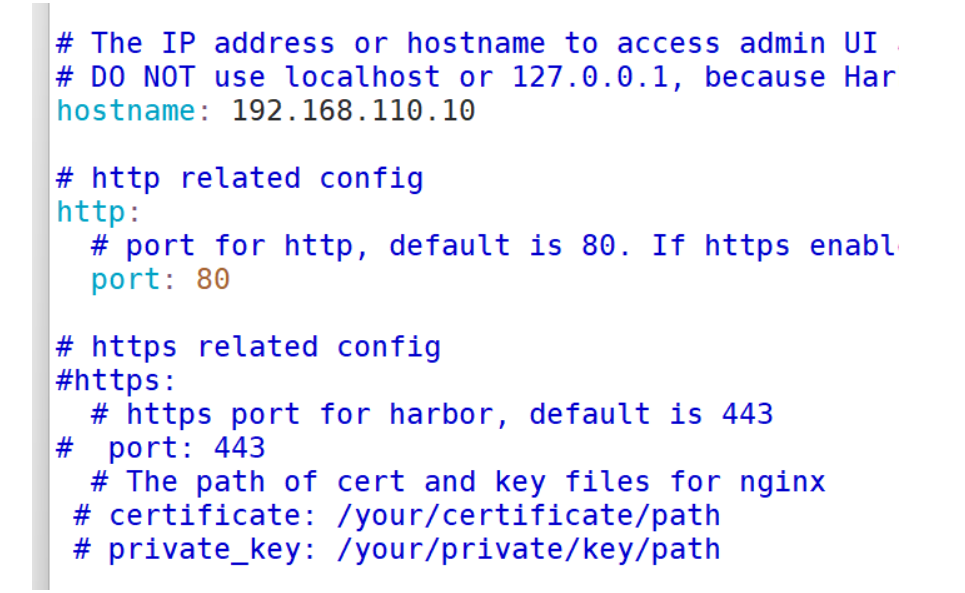
3、修改harbor.yml文件中的hostname,监听本主机IP,把https等内容注释掉,我们不用ssl功
能,同时还能通过该文件定义harbor的登陆密码,默认密码为Harbor12345。
4、先安装docker-compose,harbor是被docker-compose控制的,然后再运行 ./install.sh开始安装harbor,安装完毕后,可以通过
docker-compose start/stop开启/关闭harbor。
[root@ws harbor]# yum -y install docker-compose
[root@ws harbor]# ./install.sh
Creating harbor-portal ...
Creating harbor-db ...
Creating registry ...
Creating registryctl ...
Creating redis ...
Creating harbor-core ...
Creating harbor-jobservice ...
Creating nginx ...
✔ ----Harbor has been installed and started successfully.----
登录Harbor仓库
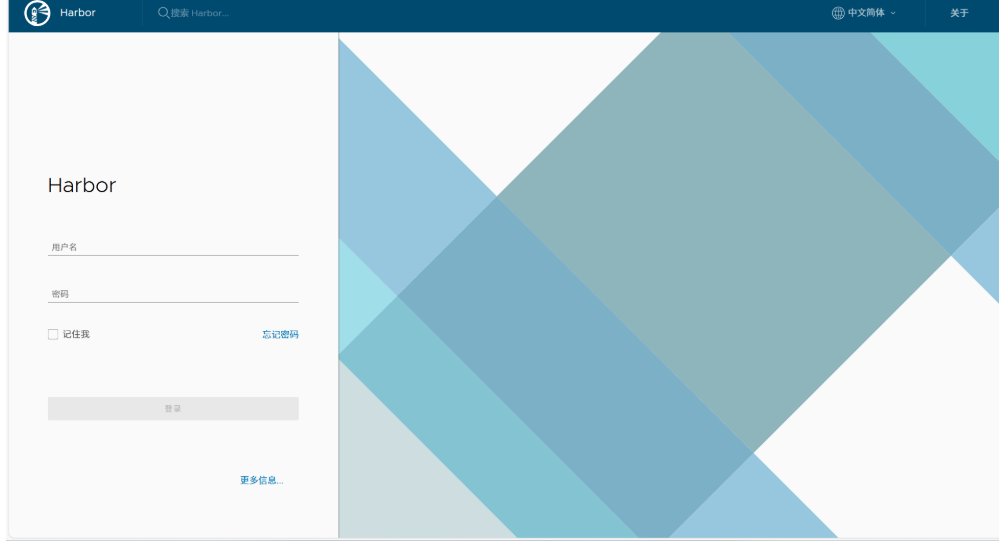
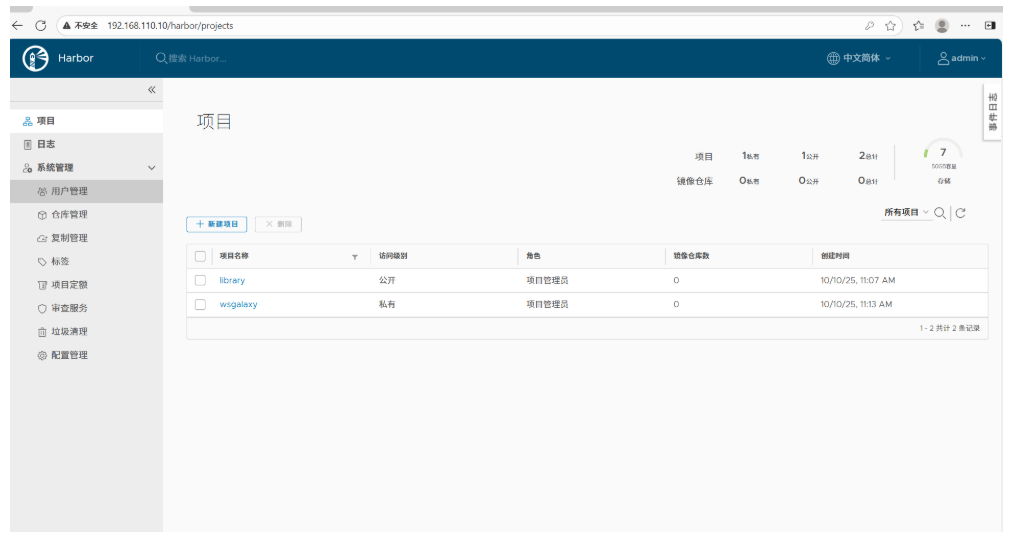
5、安装完毕后,访问http://ip/harbor,即可显示harbor图形化管理界面,账号密码为
admin/Harbor12345。,点击新建项目。如图所示,创建仓库,仓库名为wsgalaxy,点击确认。
上传镜像到Harbor仓库
6、 Docker默认是按https请求的,由于搭的私有库是http的,所以需要修改Docker配置,添加信任仓库。然后再修改镜像名,上传镜像。
[root@ws harbor]# cat /etc/docker/daemon.json
{
"registry-mirrors": [
"https://docker.m.daocloud.io",
"https://dockerproxy.com",
"https://docker.mirrors.ustc.edu.cn",
"https://docker.nju.edu.cn"
],"insecure-registries": ["192.168.110.10"]
}
[root@ws harbor]# systemctl daemon-reload
[root@ws harbor]# systemctl restart docker
[root@ws harbor]# docker tag centos:7 192.168.110.10/wsgalaxy/centos:7
[root@ws harbor]# docker login http://192.168.110.10 -u admin -p Harbor12345
WARNING! Using --password via the CLI is insecure. Use --password-stdin.
WARNING! Your password will be stored unencrypted in /root/.docker/config.json.
Configure a credential helper to remove this warning. See
https://docs.docker.com/engine/reference/commandline/login/#credentials-store

Login Succeeded
[root@ws harbor]# docker push 192.168.110.10/wsgalaxy/centos:7
The push refers to repository [192.168.110.10/wsgalaxy/centos]
174f56854903: Pushed
7: digest: sha256:dead07b4d8ed7e29e98de0f4504d87e8880d4347859d839686a31da35a3b532f size: 529
查看Harbor仓库
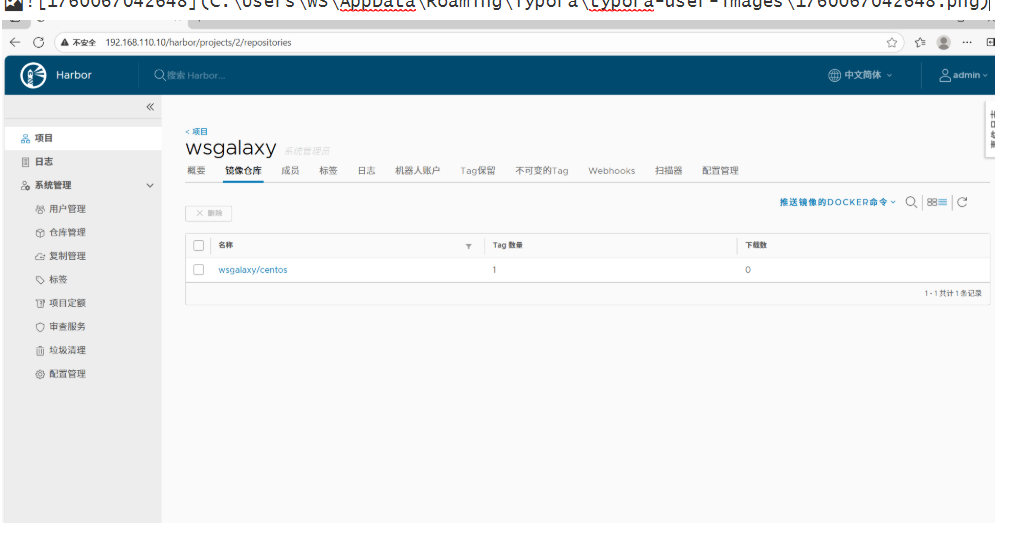
7、最后在harbor的管理界面中,可以看到galayun仓库中,就有之前上传的镜像,如果想要删除镜
像,只能通过web管理界面删除。如图所示。

码道开发者社区,聚焦华为云码道 CodeArts 代码智能体,沉淀 Agent、Skill、鸿蒙开发实战内容,供开发者查阅资料、交流技术、分享工程实践
更多推荐


 16
16 0
0- 0


 已为社区贡献4条内容

所有评论(0)